How to reset and restore settings on my Samsung smartphone
Getting started with a new phone?
Transfer your contacts, photos, apps, music and more in just a few simple steps.
- Swipe up or down to view the apps.
- Touch Settings.
- Scroll to and touch General management.
- Touch Reset.
-
Touch Reset network settings.
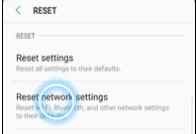
Images may not be exactly as shown.
-
Touch RESET SETTINGS.
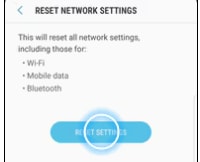
Images may not be exactly as shown.
-
Touch RESET SETTINGS.
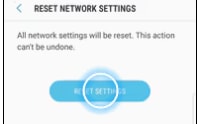
Images may not be exactly as shown.
- The network settings have been reset.
- Swipe up or down to view the apps.
- Touch Settings.
- Scroll to and touch General management.
- Touch Reset.
-
Touch Factory data reset.
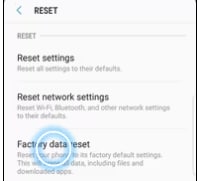
Images may not be exactly as shown.
- Read the warning, then scroll to and touch RESET.
- If you're prompted for screen lock credentials, enter your PIN/password/pattern and touch NEXT.
-
Touch DELETE ALL.
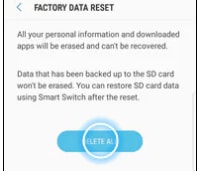
Images may not be exactly as shown.
- The phone will reset and reboot.
- Swipe up or down to view the apps.
- Touch Settings.
- Touch Connections.
- Touch Mobile networks.
-
Touch Access Point Names.
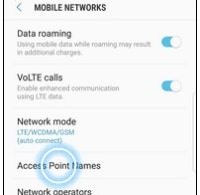
Images may not be exactly as shown.
-
Touch the Menu icon.
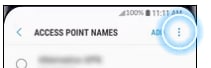
Images may not be exactly as shown.
-
Touch Reset to default.
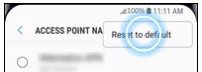
Images may not be exactly as shown.
- Touch RESET.
- The APN settings have been reset to default.
Applicable to:
Samsung Galaxy S series (S22 and higher), A series (A03s and higher), Z Flip series (5 and higher), Z Fold series (5 and higher), FE (S22 and higher) series.


Join the conversation in our community forums
Find even more support by searching topics or posting questions in our forum.
 Join the conversation by scanning the QR code.