How to manage call, text, and email settings on my Google Pixel and Samsung XCover7 Pro
- Touch Phone.
-
Touch the Menu icon.
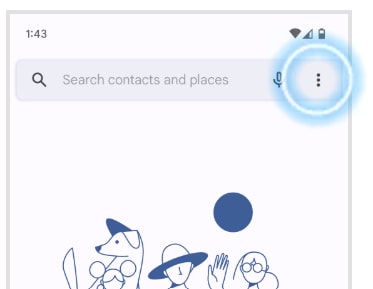
Images may not be exactly as shown.
- Touch Settings.
- Touch Calling accounts.
- Touch Bell.
- Touch Additional settings.
-
Touch Caller ID.
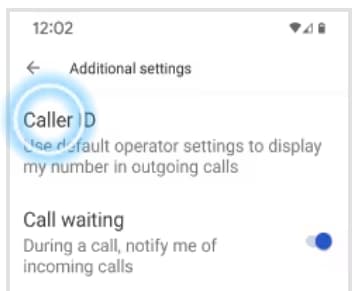
Images may not be exactly as shown.
-
Touch the desired option (e.g., Hide number).
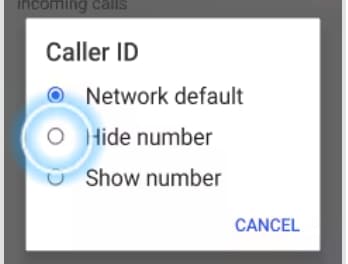
Images may not be exactly as shown.
- The caller ID option has been changed.
- Swipe up to view the apps.
- Touch Messages.
-
Touch the Start chat icon.
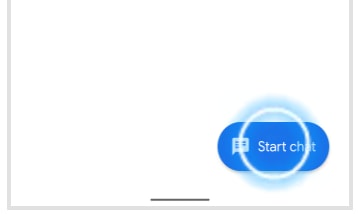
Images may not be exactly as shown.
- Enter the recipientʼs mobile phone number or enter a name to select someone from your contacts list.
- Enter your message.
-
Touch the Send icon to send the text message or touch the
camera icon to make this a multimedia message.
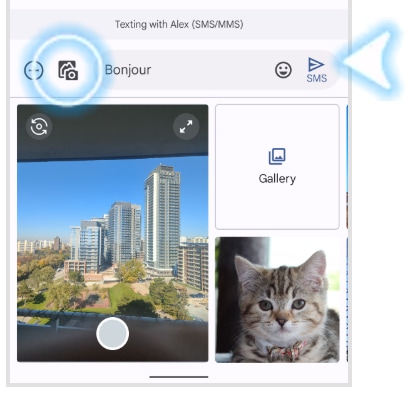
Images may not be exactly as shown.
- Select the Gallery icon.
- Touch a photo to attach it.
- Touch the Send icon.
- The message has been sent.
- Swipe up to view the apps.
- Touch Settings.
-
Scroll to and touch Passwords & accounts.
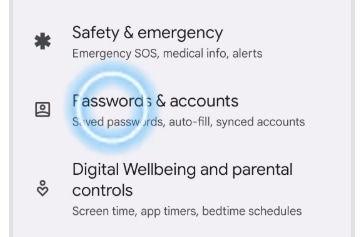
Images may not be exactly as shown.
- Touch Add account.
-
Touch Personal (IMAP).
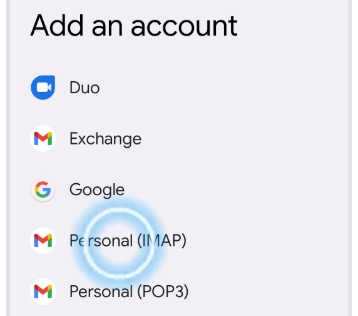
Images may not be exactly as shown.
- Enter your Bell email address. Touch NEXT.
- Enter your Bell email password. Touch NEXT.
- Change the account name and your name if desired, then touch NEXT.
- If the email account details are automatically recognized, the account will be added. Otherwise, you will need to set up the account manually.
- Touch Phone.
-
Touch the Menu icon.
Images may not be exactly as shown.
- Touch Settings.
-
Touch Blocked numbers.
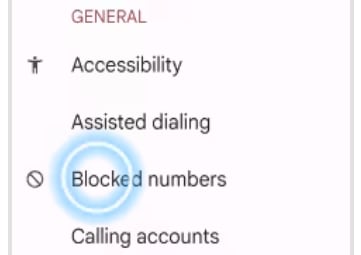
Images may not be exactly as shown.
- To add a phone number to the block list: touch Add a number.
- Enter the desired phone number.
- Touch Block.
- The phone number has been added.
-
To remove a phone number from the block list: touch the x
icon next to the phone number.
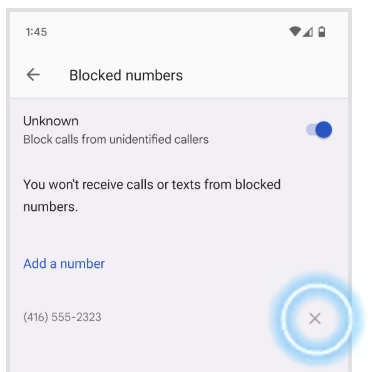
Images may not be exactly as shown.
- Touch Unblock.
- The phone number has been removed.
- Touch Phone.
- Touch the Menu icon.
- Touch Settings.
- Touch Calling accounts.
-
Touch Bell.
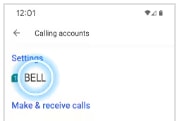
Images may not be exactly as shown.
-
Touch Call forwarding.
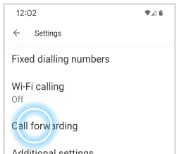
Images may not be exactly as shown.
- Touch the desired call forwarding option (e.g., Always forward).
- Enter the phone number.
- Touch TURN ON.
- Call forwarding has been set up. To disable call forwarding, touch the desired call forwarding option.
- Touch TURN OFF.
- Call forwarding has been disabled.
Google Pixel 6, Pixel 6 Pro, Pixel 7, Pixel 7 Pro, Pixel 7a, Google Pixel 8, Google Pixel 8 Pro, Samsung XCover7 Pro.
Join the conversation in our community forums
Find even more support by searching topics or posting questions in our forum.
Visit our community
Join the conversation by scanning the QR code.

Join the conversation in our community forums
Find even more support by searching topics or posting questions in our forum.
Visit our community
Join the conversation by scanning the QR code.