How to set up Bell email on my Samsung Galaxy Tablet
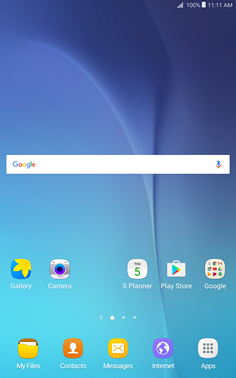
Step 1 of 27
Touch Apps.

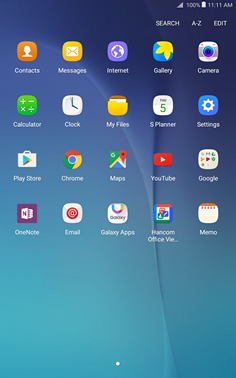
Step 2 of 27
Touch Email.
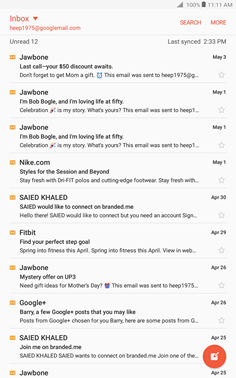
Step 3 of 27
Touch MORE.
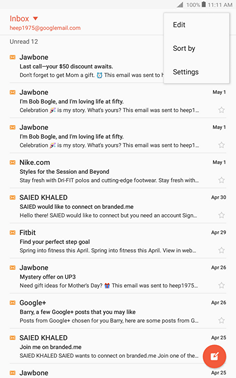
Step 4 of 27
Touch Settings.
Step 5 of 27
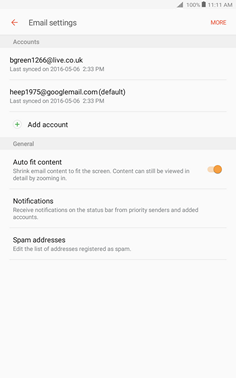
Touch Add account.
Step 6 of 27
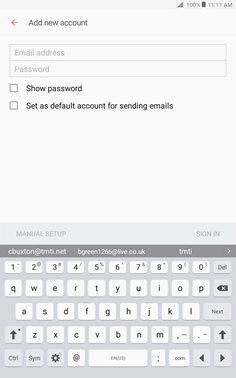
Enter your Bell email address.
Step 7 of 27
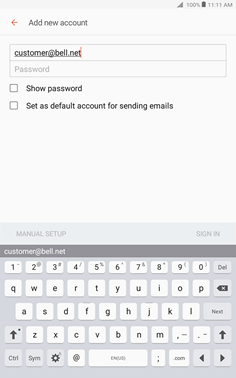
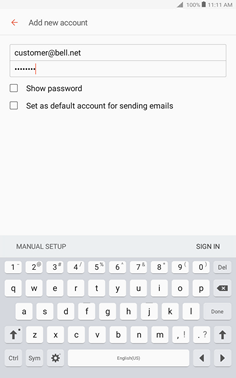
Touch Password.
Step 8 of 27
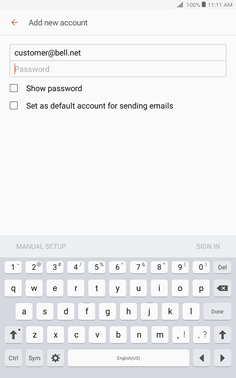
Enter your Bell email password.
Step 9 of 27
Touch MANUAL SETUP.
Step 10 of 27
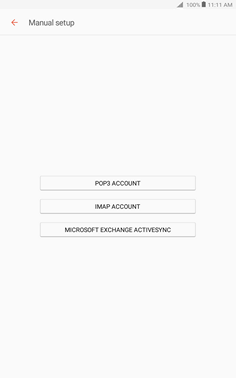
Touch IMAP ACCOUNT.
Step 11 of 27
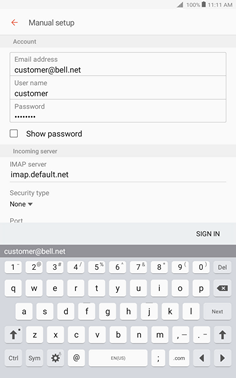
Touch User name.
Step 12 of 27
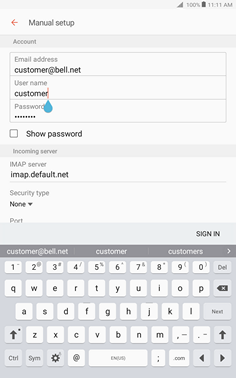
Enter your Bell email address as the user name.
Step 13 of 27
Touch Next.
Step 14 of 27
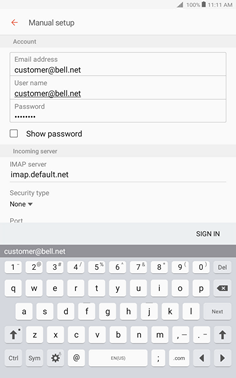
If the email account details are automatically recognized, the account will be added.
Otherwise, follow the steps below to set up the account.
Step 15 of 27
Touch IMAP SERVER.
Step 16 of 27
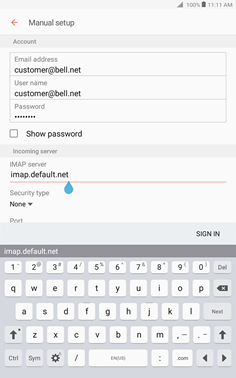
Enter imap.bell.net as the IMAP server.
Step 17 of 27
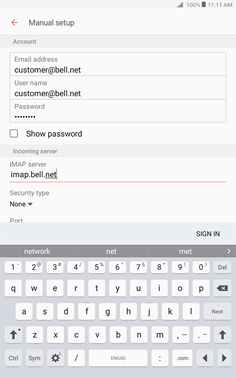
Touch Security type.
Step 18 of 27
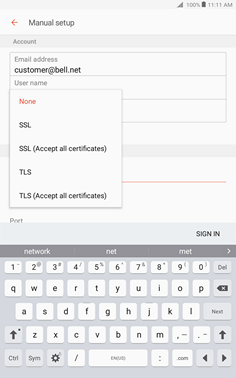
Touch SSL.
Step 19 of 27
Ensure the port is set to 993.
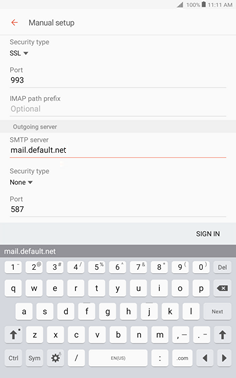

Step 20 of 27
Scroll to and touch SMTP server.
Step 21 of 27
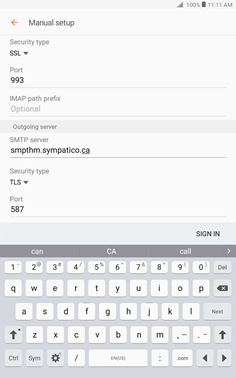
Enter smtphm.sympatico.ca as the SMTP server.
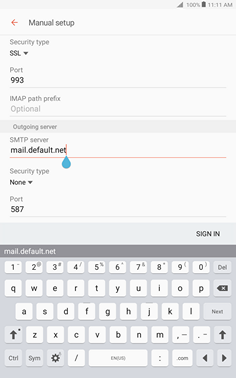
Step 22 of 27
Touch Security type.
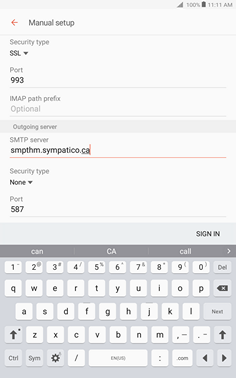
Step 23 of 27
Touch TLS.
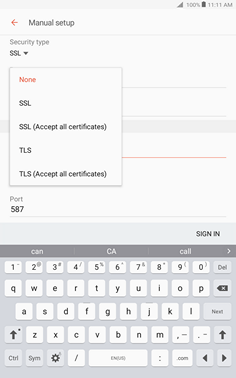
Step 24 of 27
Ensure the port is set to 587.
Step 25 of 27
Touch SIGN IN.
Step 26 of 27
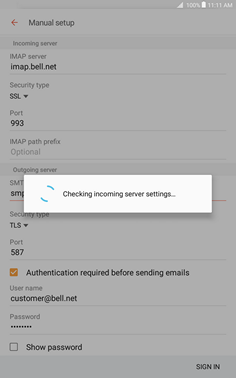
Wait while the email settings are verified.
Step 27 of 27
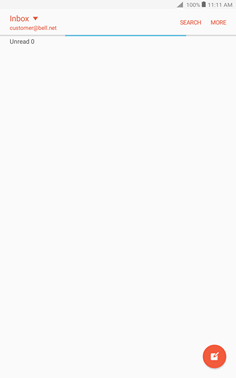
Your email account has been added.
- Touch Apps.
- Touch Email.
- Touch MORE.
- Touch Settings.
- Touch Add account.
- Enter your Bell email address.
- Touch Password.
- Enter your Bell email password.
- Touch MANUAL SETUP.
- Touch IMAP ACCOUNT.
- Touch User name.
- Enter your Bell email address as the user name.
- Touch Next.
- If the email account details are automatically recognized, the account will be added.
Otherwise, follow the steps below to set up the account. - Touch IMAP SERVER.
- Enter imap.bell.net as the IMAP server.
- Touch Security type.
- Touch SSL.
- Ensure the port is set to 993.
- Scroll to and touch SMTP server.
- Enter smtphm.sympatico.ca as the SMTP server.
- Touch Security type.
- Touch TLS.
- Ensure the port is set to 587.
- Touch SIGN IN.
- Wait while the email settings are verified.
- Your email account has been added.