How to manage mobile data settings on my Samsung smartphone
- Swipe up or down to view the apps.
- Touch Settings.
- Touch Connections.
- Touch Mobile networks.
-
Touch Data roaming to change the setting (e.g., from off to
on).
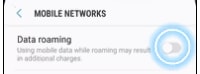
Images may not be exactly as shown.
- Data roaming is now on. Touch Data roaming again to turn it off.
- To switch data off completely, touch the Back icon.
- Touch Data usage.
-
Touch Mobile data.
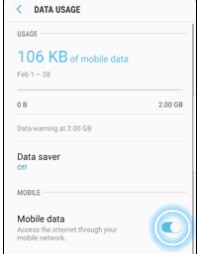
Images may not be exactly as shown.
- Data services are now off. Touch Mobile data again to turn data services on.
- Swipe up or down to view the apps.
- Touch Settings.
- Touch Connections.
- Touch Data usage.
-
Touch Billing cycle and data warning.
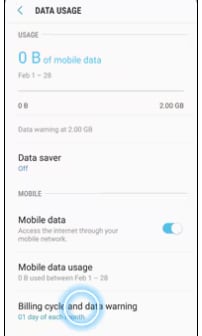
Images may not be exactly as shown.
- Touch Start billing cycle on.
- Scroll to the desired date.
- Touch SET.
-
Touch Data warning.
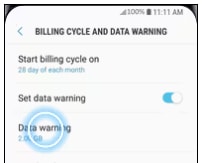
Images may not be exactly as shown.
- Enter the desired data usage warning.
- Touch SET.
-
Touch the Set data limit slider to turn it on.
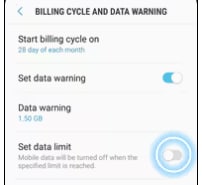
Images may not be exactly as shown.
-
Touch Data limit.
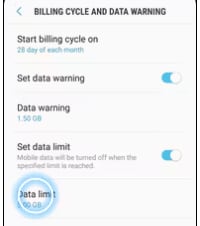
Images may not be exactly as shown.
- Enter the desired data usage limit.
- Touch SET.
- The changes have been saved.
Applicable to:
Samsung Galaxy S series (S22 and higher), A series (A03s and higher), Z Flip series (5 and higher), Z Fold series (5 and higher), FE (S22 and higher) series.


Join the conversation in our community forums
Find even more support by searching topics or posting questions in our forum.
 Join the conversation by scanning the QR code.