Activating and using your Bell MTS Mail account
Before you can use your Bell MTS Mail account to send or receive email, you must first activate your account.
To activate a Bell MTS Mail account, please have the following information handy:
- Your Bell MTS Mail log in ID – username@mymts.net provided to you by Bell MTS.
- Your temporary password (This is the same as your Bell MTS High Speed Internet log in password).
To activate your account:
- Go to mtsmail.ca.
- Enter your mymts.net email address (i.e. username@mymts.net).
- Enter your email password.
- Click Log In.
Once you have logged into Webmail, you will be asked to provide or verify some personal information and create a Security Question/Answer to be used if you forget your password. Once this is complete, your account will be activated and you will be redirected to the online email homepage.
You may continue using your Bell MTS Mail through the mtsmail.ca website or find out how to setup the email software on your smartphone, tablet or computer.
You can set up your Bell MTS Mail account through software stored on your computer or using an app on your smartphone or tablet
Set up your Bell MTS Wireless Home internet mail account on your computer
Set up your Bell MTS Wireless Home internet mail account on your smartphone or tablet
- To set up your Bell Wireless Home internet email account on your smartphone, visit Bell Mobility Support and select your device for step-by-step instructions.
What are the Bell MTS Mail server settings I can use to manually set up my account?
POP:
-
Authentication is required for both incoming and outgoing.
- Use full @mymts.net email address and password.
- Account Type: POP3
- Incoming mail server: mail.mymts.net
- Authentication is required.
- Do not enable secure password authentication (SPA).
- Port: 995
- Select SSL for security.
- Outgoing mail server (SMTP): mail.mymts.net
- Authentication is required.
- Port: 587
-
Select a security method based on what is available:
- StartTLS
- TLS
- SSL
IMAP:
-
Authentication is required for both incoming and outgoing.
- Use full @mymts.net email address and password.
- Account Type: IMAP
- Incoming mail server: mail.mymts.net
- Do not enable secure password authentication (SPA).
- Port: 993
- Select SSL for security.
- Outgoing mail server (SMTP): mail.mymts.net
- Port: 587
-
Select a security method based on what is available:
- StartTLS
- TLS
- SSL
CalDAV & CardDAV
-
Authentication is required.
- Use full @mymts.net email address and password.
- Server Name: mail.mymts.net
DNS:
- Primary DNS - 142.161.2.155
- Secondary DNS - 142.161.130.155
Login User Name:
- userid@realm.mts.net
Realms:
| Plan | Realm |
|---|---|
| Light | resa |
| Essentials | res1 |
| Essential Plus | res2a, res2b |
| Fibe | fibe1c.mts.net, fibe1f.mts.net |
| Fibe 10 | res1 |
| Fibe 25 | resc, fibe2c.mts.net, fibe2f.mts.net |
| Fibe 50 | res3, fion1 |
| Fibe 100 | fibe4c, fibe4f |
| Fibe 150 | fion2 |
| Fibe 300 | fion3 |
| Gigabit Fibe | fion5 |
| Entrepreneur | res1 |
| Entrepreneur (on Fibe TV network) | bhs |
| Entrepreneur Mach 1 | bhs1 |
| Entrepreneur Mach 2 | bhs2 |
| Entrepreneur Mach 3 | bhs3 |
| Professional I | bhsp and bsvl1 and bslv3 |
| Professional II | bslv5 |
| Network I | bgld1 and blgd3 |
| Network II | bgld5 |
Dial Up Numbers
Bell MTS Dial-up Internet service includes a feature called "roaming," which allows you to connect to the Internet from anywhere when traveling throughout Canada or the United States at no additional charge. For instance, if you live in Winnipeg and are visiting Toronto, you can still send and receive email or browse the Internet from Toronto. All you have to do is set up a new dial-up connection.
Roaming is toll-free throughout Canada or the U.S. for Bell MTS Internet customers. When you roam, your monthly Bell MTS Dial-up pricing plan applies, and your time spent online accrues as usual.
If you are roaming outside of Manitoba, you will just need to change the phone number that your computer dials to connect you to the Internet.
Toll-free in Manitoba Dial-up access number:
Roaming in Canada or the United States:
If you are away from your home computer or smartphone, you can conveniently log in to your Bell MTS Mail account through any web browser.
Important
You will be unable to log in using an email alias (e.g. username@mtsmail.ca).
- Go to mtsmail.ca
- Enter your @mymts.net email address (e.g. username@mymts.net) and password.
- Click LOG IN.
Any received email messages sent to your Bell MTS Mail account can be forwarded or redirected to another email account. This is especially convenient if you want to check multiple email accounts in one place or if you have another primary email account that isn't @mymts.net.
Bell MTS Mail allows you to automatically forward emails to another email account of your choice.
To set this up, follow these steps:
- Visit mtsmail.ca and log in using your Bell MTS Mail ID (Example: userid@mymts.net) and password.
- Select the Preferences > Mail page.
- In the Receiving Messages > Message Arrival section, look for a field marked Forward a copy to: and enter the email address where you want your emails to be redirected.
- If you do not want the messages saved in your mailbox, select the option Don't keep a local copy of the message.
- Click Save.
Important
To forward to multiple email addresses, use a comma to separate each email address you wish your messages to be forwarded to (e.g. email1@mymts.net, email2@mymts.net).
What is the password for my Bell MTS Mail account?
To protect your email account security, we do not keep your email passwords on file and have no way of retrieving them. If you don't remember your email password, please see instructions on resetting it below.
Why does my mail program keep asking for my password?
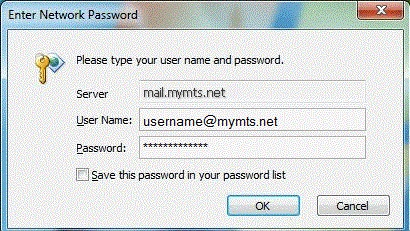
This problem usually happens for one of three reasons:
- Your mymts.net email address has not yet been activated.
- The password saved in your email program is incorrect.
- Your email password has recently been changed or reset.
If you are an existing Bell MTS customer who has not yet used your mymts.net email account, you will need to activate your email address.
How do I reset my Bell MTS Mail password?
Important
When you activated your Bell MTS Mail account, you would have been asked to select a secret question/answer to reset a lost password. If you did not set up a secret question or can't remember your answer, please contact us
Follow these steps to reset your password:
-
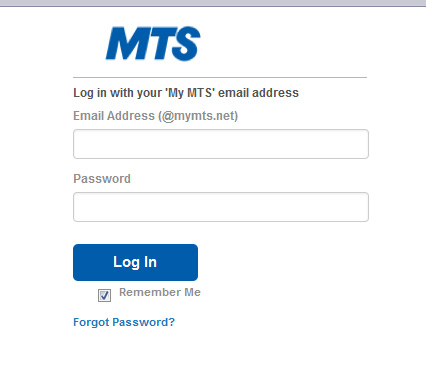
Go to
mtsmail.ca and click
Forgot Password or go to:
https://mts.ca/passwordreset
-
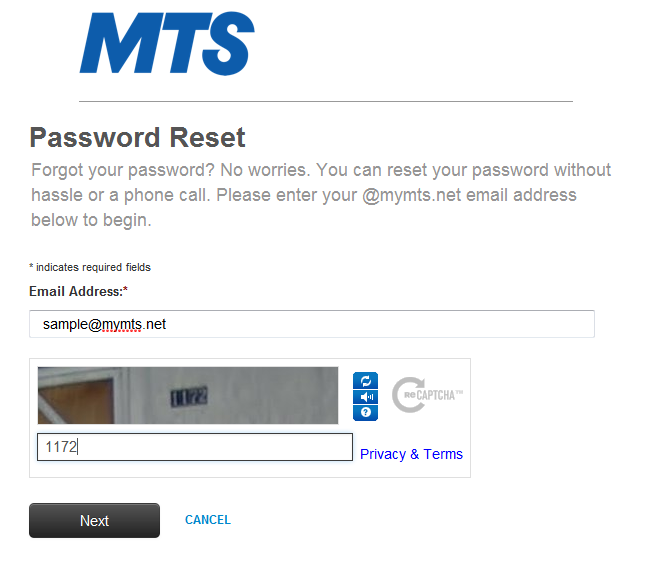
Enter your @mymts.net email address, enter the text you see in the captcha image and click
Next.
-
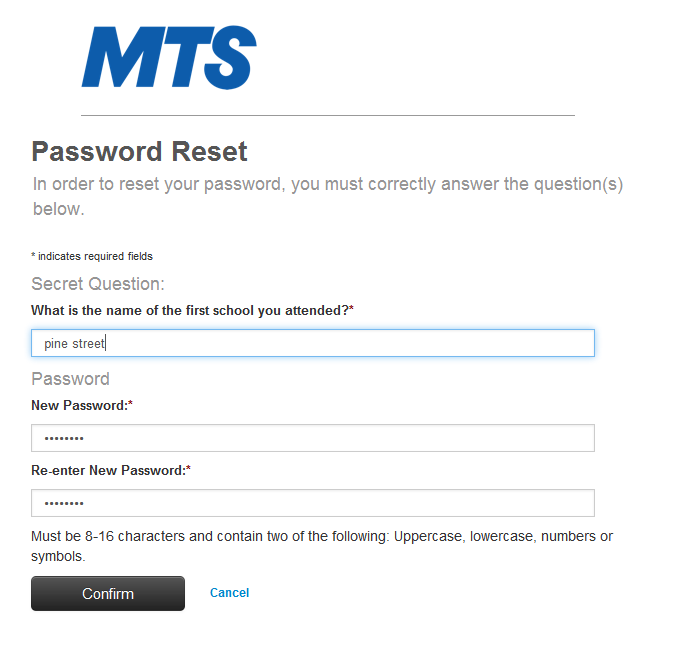
Enter the answer to your secret question, and type in a new password. Then click
Confirm.
Important
You have 3 attempts to type in the correct answer to your security question. After 3 attempts, your account will be locked for 15 minutes. Then you can try again.
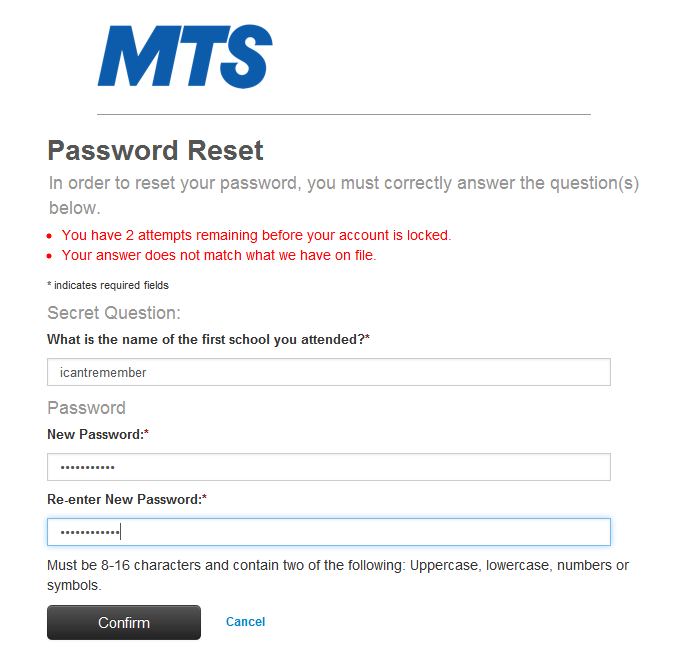
-
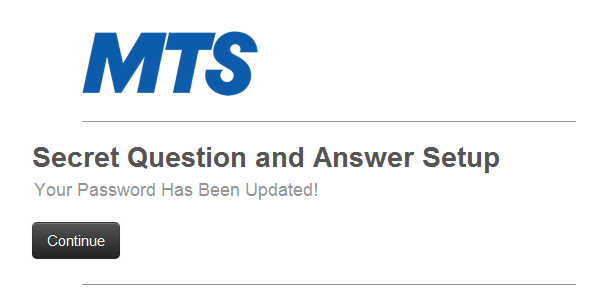
Once you enter the correct answer to your secret question, your new password will be activated. Click
Continue to be redirected to Webmail login page.
Where can I find help with my Bell MTS Mail account?
- Visit http://mtsmail.ca
- Log in using your @mymts.net email address (e.g. userid@mymts.net) and email password.
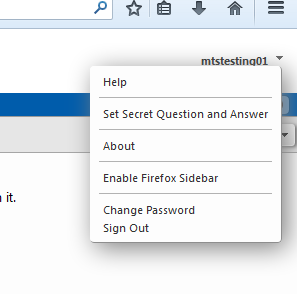
- Click your Account Name in the top right corner.
- Select Help from the menu that appears.
Where do I call for technical assistance?
Bell MTS will continue to provide support for customer technical problems. If you have issues or questions, please contact us
Important
While Bell MTS is your email provider, we have no knowledge of any passwords associated with your account. Find out how to reset your password or contact us for help.