Bell MTS Silver or Charcoal VIR-140 or RC-153
This service is only available to MTS customers in Manitoba. To find support for your region, please select your province.
Bell MTS Silver or Charcoal VIR-140 or RC-153 - Program your remote
You can program your Bell MTS TV Remote to control other devices using the TV, DVD and AUX mode keys.
Note:
- The AUX button may be programmed to operate a VCR, Home Theatre In the Box (HTIB), receiver or amplifier you need to tell the remote control what types of devices you have.
- The Bell MTS TV Remote must be set to STB Mode in order to control your Bell MTS TV Set Top Box.
Using the Automatic Search to program your remote
You can search the remote control memory for your 4 digit manufacture device code. Also use this function if the code for your device is not found.
- Turn on the device you wish to program and point the remote control at the device.
- Press and hold the mode key (TV, DVD or AUX) and without releasing, press and hold the OK key simultaneously for one second.
- Release both keys (all mode keys will flash twice indicating programming mode).
-
Enter 922 by pressing the number keys on the remote control.
The selected mode key will flash twice indicating correct entry. For AUX searching only, press and release the PLAY key then press:
- 1 for VCR
- 2 for Receiver/Tuner
- 3 for Amplifier
- 4 for Home Theatre In the Box (HTIB)
- The AUX mode keys will flash twice indicating correct entry
-
Press and hold PLAY key and wait until the device turns off, then release the PLAY key.
- The REW key can be unitized to go back through the codes one at a time.
- The FF key can be utilized to move forward through the codes one at a time.
Note: You can press and release the PLAY button repeatedly to cycle through the codes one at a time rather than holding the PLAY button down.
-
To save the code press the ENTER key on the remote control or press the EXIT key to return to normal operations (mode key will flash three times).
- If no valid code is found, the green backlight will flash twice and the remote control will return to normal operation.
-
Once completed press STB.
You may need to repeat steps 1 through 5 to find a code.
Note: If any other key is pressed except PLAY, ENTER, POWER, EXIT, REW, FF or number keys 1 to 4 the selected mode key will give a long red flash (error message) and the remote control will return to normal operation and you will need to start over. If you are interrupted while you are programming, the remote control may time-out before you complete the code setup and you will need to start over. This is indicated by two quick flashes of the green backlighting.
Manually program the TV, DVD, or AUX mode keys
- Power on the device you want to program.
-
Locate the 4-digit set up code for the device you want to program (PDF 96.6 KB).
- If you do not find the brand of your device, please refer to Using the Automatic Search.
- If you have an integrated or combination unit, such as a TV/DVD unit, each component of the unit will normally be programmed separately.
- Press and hold the appropriate mode key (TV, DVD or AUX) and while holding, press and hold the OK key simultaneously for one second.
- Release both the keys (all the mode keys should flash twice).
-
Enter the 4-digit set up code by pressing the number keys (0-9) on the
remote control.
- 3 blinks = accepted
-
Point the remote control at the programmed device and press the POWER key once. The device should turn off.
- If the device stayed on, repeat steps 2 through 5 trying each code for your brand until you find the correct code.
-
Press the STB key.
Repeat steps to program another device.
Note: If an invalid code is entered, the selected mode key will give a long flash to indicate that you have not entered the set up code correctly. Should the remote control time-out before you complete the code setup, you will need to start over.
Power Control Set Up Options for Multiple Devices
By default, the POWER key only powers on or places your Set Top Box in Standby mode. If you program the TV mode key then the TV and Set Top Box can both be powered on/off simultaneously. You also have the option to turn on/off TV, DVD and AUX mode devices individually by pressing the applicable mode key then the POWER key.
To Have Multiple Devices Power On/Off with the POWER Key
If you would like other devices to be powered on/off simultaneously with the POWER key then follow these instructions for the additional devices (for a total of four).
- Press and hold the STB key on the remote control.
- Without releasing the STB key, press and hold the OK key simultaneously.
- Release both the STB key and the OK key - All the mode keys will flash twice indicating programming mode.
- Enter 977 by pressing the number keys on the remote control - The STB key will flash twice indicating correct entry.
- Press the STB key on the remote control - The STB key will flash twice indicating correct entry.
- Press the TV key on the remote control - The TV key will flash twice indicating correct entry.
-
Press each additional mode key that you wish to include such as the
DVD key or AUX key.
- The selected mode key will flash twice indicating correct entry.
- If you want to include both mode keys repeat step 7 selecting the other mode key.
- Press the ENTER key to complete - The last mode key selected will flash three times indicating successful assignment and return to normal operation.
Notes:
- If you press any key other than the mode keys or ENTER, the STB key will give a long red flash and the remote control will return to normal operation. Should the remote control time-out before you complete the procedure you will need to start over.
- If the devices that you have programmed to turn on/off at the same time get out of sync so that some turn on and others turn off you will need to manually turn off the out of sync devices and then press the POWER key to turn them all back on. It is important to point the remote directly toward the devices for this to work properly.
- To change the number of devices controlled by the POWER key, you must start at Step 1 and continue until all desired devices have been programmed.
Volume Control Setup Options for Multiple Devices
The volume controls will control your Set Top Box (STB) until the TV device mode key is programmed, e.g. if DVD mode is selected then volume controls your STB. If TV mode key is programmed and DVD mode is selected, then volume controls your TV.
Volume Always Controls the Same Device
- Press and hold the STB key on the remote control.
- Without releasing the STB key, press and hold the OK key simultaneously.
- Release both keys (all mode keys will flash twice indicating programming mode).
- Enter 955 by pressing the number keys on the remote control (the STB key will flash twice indicating correct entry).
- Press the mode key that you want to always receive the volume commands (the selected mode key will flash three times indicating successful assignment).
The volume commands will now go to the selected device no matter what mode you are in.
Volume Control Depends on Device Selected
The volume setting can also be reconfigured to independently control the volume associate with each device. (E.g. In AUX mode the receiver controls the audio; In TV mode the TV controls the audio).
- Press and hold the STB key on the remote control.
- Without releasing the STB key, press and hold the OK key simultaneously.
- Release both keys (all the mode keys will flash twice indicating programming mode).
- Enter 955 by pressing the number keys on the remote control (STB key will flash twice indicating correct entry).
- Press the ENTER key (STB key will flash tree times indicating successful assignment).
Please refer to the Fibe TV Complete User Guide (PDF 1.79 MB). for detailed instructions on:
- Channel Selection Set Up Option
- Power Control Set Up Options
- Multiple Devices Power Off with the Power Key
- Change and Remove Codes
Reset Remote Control to Factory Default Settings
- Press and hold the STB key on the remote control.
- Without releasing the STB key, press and hold the OK key.
- Release both the STB key and the OK key - All four mode keys will flash twice to indicate programming mode.
- Enter programming code 900 by pressing the number keys on the remote control - The STB key will flash three times indicating you have successfully entered the code and the remote has been reset to the factory default settings.
Note: If any other key is pressed except the number keys the STB key will give a long red flash and the remote control will return to normal operation. Should the remote control time-out before you complete the procedure you will need to start over.
Bell MTS Silver or Charcoal VIR-140 or RC-153 - Remote buttons
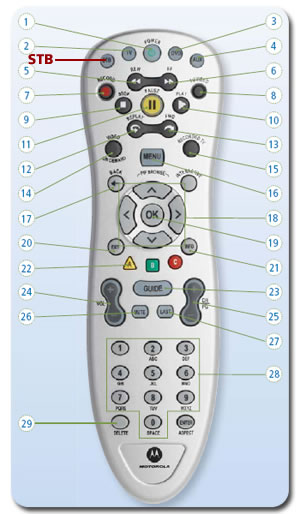
STB - Set Top Box – The Bell MTS TV Remote must be set to STB mode in order to control your service.
- POWER - turns TV on/off.
- TV - sets the remote control TV functions.
- DVD - can be set up to control DVD player.
- AUX/span - can be set up to control auxiliary devices.
- REW - rewinds Bell MTS Video on Demand, recorded*, or live TV*.
- FF - fast forwards Bell MTS Video on Demand, recorded*, or live TV*.
- RECORD - to record live TV*.
- TV/VIDEO - to change the video input.
- STOP - stops Bell MTS Video on Demand or recorded TV*.
- PLAY - plays Bell MTS Video on Demand or recorded TV*.
- PAUSE - pauses Bell MTS Video on Demand, recorded*, or live TV*.
- REPLAY - skips backward in short segments in Bell MTS Video on Demand, recorded*, or live TV*.
- FWD - skips forward in short segments in Bell MTS Video on Demand, recorded*, or live TV*.
- VIDEO ON DEMAND - displays video on demand menu.
- RECORDED TV - displays programs you have recorded on your PVR*.
- MENU - displays interactive menu.
- BACK - returns to the last screen you were on.
- ARROW BUTTONS - to navigate through the menu, guide, and to bring up picture in picture.
- OK - activates highlighted item.
- EXIT - exits current function.
- INFO - displays program information.
- A - launches the search function.
- GUIDE - displays interactive program guide.
- VOLUME - adjusts volume.
- CH/PG - to change channels or navigate through menus and screens.
- MUTE - mutes and unmutes sound.
- LAST - returns to the last channel you were watching.
- NUMERIC KEYPAD - to manually enter channel and other numbers.
- DELETE - to delete numbers or letters.
Bell MTS Silver or Charcoal VIR-140 or RC-153 - Troubleshooting your remote
Note:
- If your remote control stops working, hit the STB button first to make sure the remote is in the right mode.
- TV brightness settings or reflective surfaces nearby can interfere with the infrared signal from your remote to your Set Top Box. Try adjusting the brightness on your TV and hide any reflective surfaces.
How far can I stand from the TV for the remote to work?
The remote control requires a clear line of sight to your Set Top Box. Ensure there is nothing blocking your set top box, or you are not too far off to either side. You have to be within 20 feet of your set top box for the remote to work properly.
The green LED light is on, but my set top box doesn't respond to my remote control.
First, press the STB button at the top of the remote control. Then try to change channels using the buttons on your set top box. If the buttons on your set top box light up when you press them, check the remote control batteries. Ensure that there is a clear path between the remote control and the equipment. If necessary, clean the infra-red receivers on the equipment.
Why won't my set top box respond to my remote control?
If your remote control works with your Fibe TV set top box but not with your TV or VCR/DVD, try re-programming the remote control using the Device Codes (PDF 96.6 KB).
Why won't my TV set top box turn on?
- Try pressing the front panel power button on your set top box.
- Make sure all your power cords are completely inserted into outlet.
- Ensure your TV set is plugged into a working power outlet.
- If a power bar or surge protector is being used, make sure that the power bar is on and has not tripped. If it has tripped, press the reset button on the power bar to restore power.
- If the green LED light at the front of the Fibe TV set top box lights up, your box is now on and working.