Bell MTS - Installing or replacing your Motorola VIP2202 and VIP2262 set-top box
This service is only available to MTS customers in Manitoba. To find support for your region, please select your province.
Front Panel Lights/Function for VIP2202 and VIP2262
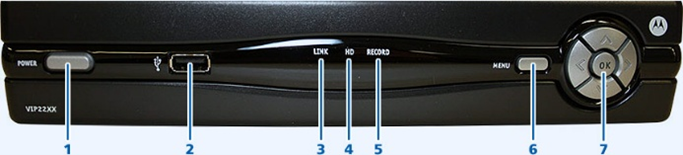
| Key | Item | Function |
|---|---|---|
| 1 | POWER |
|
| 2 | USB | USB 2.0 port (Not compatible with Bell MTS service). |
| 3 | LINK | Green: Connected to the Bell MTS TV network. |
| 4 | HD | Blue: Set-top box is receiving an HD signal. |
| 5 | RECORD | Red: PVR is recording one or more shows. |
| 6 | MENU | Displays the on-screen menu. |
| 7 | UP/DOWN/LEFT/RIGHT/OK |
|
Rear Panel Function for VIP2202 and VIP2262
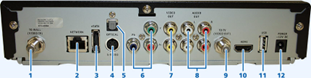
| Key | Item | Function |
|---|---|---|
| 1 | TO WALL (VIDEO IN) | Coaxial input from the 2Wire or Pace Residential Gateway to the set-top box. |
| 2 | NETWORK | Ethernet 10/100 Base-T RJ-45 port. |
| 3 | eSATA (Model 2262 only) | eSATA connection for external hard drive. (Not compatible with MTS Service). |
| 4 | S-VIDEO | High-quality video output to a VCR or TV that accepts S-Video. It carries video only; you must also connect to the TV or home theatre receiver for audio. |
| 5 | OPTICAL | S/PDIF output. High-quality digital audio output (to a digital home theatre receiver). |
| 6 | Y PB PR | RCA-type component video outputs to an HD-TV or home theatre receiver. It carries video only; you must also connect to the TV or home theatre receiver for audio. |
| 7 | VIDEO OUT | RCA-type, standard-quality video output (to a TV, VCR, DVD recorder, or other device). It carries video only; you must also connect to the TV or home theatre receiver for audio. |
| 8 | AUDIO OUT L & R | Stereo audio outputs (Left and right RCA-type). |
| 9 | TO TV (VIDEO OUT) | High-Definition output. Connects to an HD-TV or home theatre received with an HDMI input. For a DVI input, use an HDMI-to_DVI adapter. |
| 10 | HDMI | High-Definition output. Connects to an HD-TV or home theatre received with an HDMI input. |
| 11 | USB | USB 2.0 port (Not compatible with MTS service). |
| 12 | POWER | DC power adapter connector. The adapter is different for Models 2262 and 2202. Only use the power cord and adapter supplied with the unit, as they are not interchangeable. |
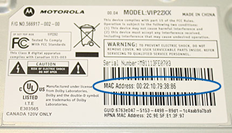
Finding the MAC Address of VIP2202 and VIP2262
You can find the MAC address on a sticker on the bottom of the unit.
How to replace your VIP2202 set-top box with a VIP2202 set-top box
-
Disconnect all cables from your current set-top box and connect them to the corresponding connections on your new set-top box. If you have a coaxial connection, a wrench or pliers might be required to loosen the coaxial cable.
- If you have a USB device plugged into the front of the PVR set-top box for your RF remote, ensure that you transfer it over to the new PVR set-top box.
-
Note: Do not plug in the old power adapter into the new PVR set-top box.

Images may not be exactly as shown
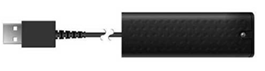
RF USB Receiver
Images may not be exactly as shown
-
Connect the set-top box to a power outlet, the lights on the front of the set-top box will flash. The set-top box will take several minutes to load.
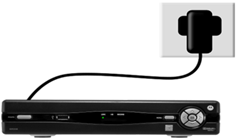
Images may not be exactly as shown
- Ensure your TV is set to the correct input (HDMI1, HDMI2, Video1, etc.).
- After a few minutes, the Fibe TV logo will appear on your TV screen when it is ready for use. Press SELECT or OK to watch TV.
How to replace your VIP1200 set-top box with a VIP2202 set-top box
-
Disconnect all cables from your current set-top box and connect them to the corresponding connections on your new set-top box.
- If you have a USB device plugged into the front of the set-top box for your RF remote, ensure that you transfer it over to the new set-top box.
-
Note: Do not plug in the old power adapter into the new set-top box.
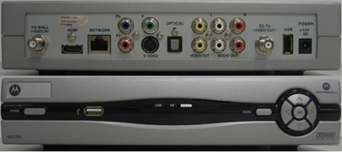
VIP1200
Images may not be exactly as shown
VIP2202
Images may not be exactly as shown
RF USB Receiver
Images may not be exactly as shown
-
Once you have connected the set-top box to a power outlet, the lights on the front of the set-top box will flash. The set-top box will take several minutes to load.
Images may not be exactly as shown
- Ensure your TV is set to the correct input (HDMI1, HDMI2, Video1, etc.).
- The Fibe TV logo will appear on your TV screen when it is ready for use. Press SELECT or OK to watch TV.
How to replace your VIP2262 PVR set-top box with a VIP2262 PVR set-top box
Note: All recordings will be lost with the PVR replacement. It is not possible to transfer the recordings from the internal storage (hard drive) on your old PVR to the new PVR.
-
Disconnect all cables from your current PVR set-top box and connect them to the corresponding connections on your new PVR set-top box.
- If you have a USB device plugged into the front of the PVR set-top box for your RF remote, ensure that you transfer it over to the new PVR set-top box.
-
Note: Do not plug in the old power adapter into the new set-top box.
Images may not be exactly as shown
RF USB Receiver
Images may not be exactly as shown
-
Once you have connected the PVR set-top box to a power outlet, the lights on the front of the PVR set-top box will flash. The set-top box will take several minutes to load.
Images may not be exactly as shown
- Ensure your TV is set to the correct input (HDMI1, HDMI2, Video1, etc.).
- The Fibe TV logo will appear on your TV screen when it is ready for use. Press SELECT or OK to watch TV.
How to replace your VIP1216 set-top box with a VIP2262 set-top box
Note: All recordings will be lost with the PVR replacement. It is not possible to transfer the recordings from the internal storage (hard drive) on your old PVR to the new PVR.
-
Disconnect all cables from your current set-top box and connect them to the corresponding connections on your new set-top box.
- If you have a USB device plugged into the front of the set-top box for your RF remote, ensure that you transfer it over to the new set-top box.
-
Note: Do not plug in the old power adapter into the new set-top box.
VIP1216
Images may not be exactly as shown
VIP2262
Images may not be exactly as shown
RF USB Receiver
Images may not be exactly as shown
-
Once you have connected the set-top box to a power outlet, the lights on the front of the set-top box will flash. The set-top box will take several minutes to load.
Images may not be exactly as shown
- Ensure your TV is set to the correct input (HDMI1, HDMI2, Video1, etc.).
- The Fibe TV logo will appear on your TV screen when it is ready for use. Press SELECT or OK to watch TV.