How to Access MyMenu
Tips:
- To exit a screen and return to Live TV anytime, press the EXIT button on your remote control.
- When you exit MyMenu, you will be returned to the channel you were previously watching.
- This app does not require a subscription to Bell MTS High Speed Internet but some of the apps within MyMenu do.
- If you've added icons to your Favourites page, this page will appear when launching MyMenu.
- Customize the background with the B button on your remote.
- Press the Interactive button on your remote control to launch your very own customizable menu – called MyMenu. A variety of icons will appear.
- To find information about an icon on the page, use the arrow buttons to navigate to the icon, press the INFO button for more information.
- Use the arrow buttons to navigate to Done and press OK or use the BACK button to return to the previous page.
Tip: Within MyMenu, you can navigate around the application using the arrow buttons on your Bell MTS TV remote control.
- Use the arrow buttons on your remote control to navigate to Apps and press OK.
- Use the arrow buttons to navigate to an icon and press OK to launch from this page.
Note: Some Apps On TV require a monthly subscription fee with a 30 day minimum subscription.
- Use the arrow buttons on your remote control to navigate to Display and press OK.
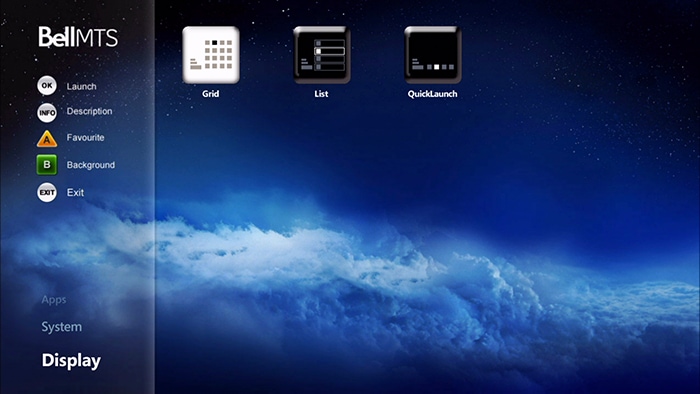
- Use the arrow buttons to navigate to the layout style you prefer and press OK.
Note: A check mark indicates which layout is currently selected.
- To have MyMenu available while watching TV, select Quick Launch layout and press OK. At any time press the Interactive button and a grid will appear at the bottom of your TV viewing.
- Use the arrow buttons to scroll through the icons.
Note: If you change your display, you must exit out of the MyMenu app and then re-launch it to see your new layout.
You can create a Favourites page of all the icons you like to use.
- Use the arrow buttons on your remote control to navigate to Favourites and press OK.
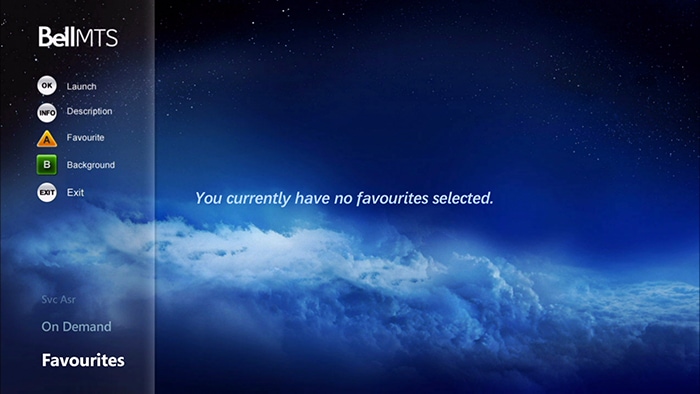
- If you haven't added any icons as your Favourites, this page will appear blank.
- Use the arrow buttons to navigate to an icon to add to your Favourites page.
- Press the A button.
- A yellow star will appear on the icon to show it's been added to your Favourites page.
- To view all of your Favourites navigate to Favourites and press OK.
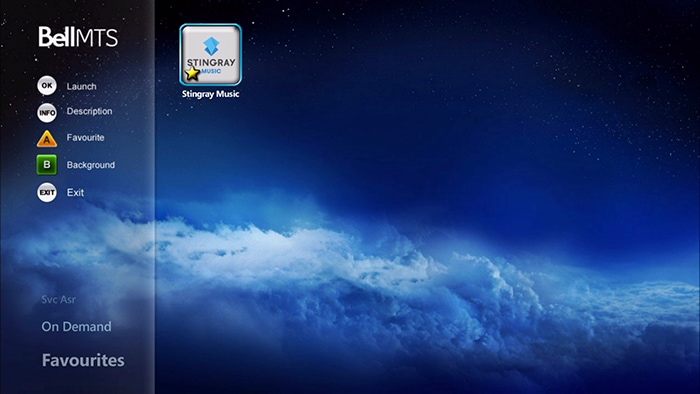
Note: If you've added icons to your Favourites page, this page will appear when launching MyMenu.
- Use the arrow buttons on your remote control to navigate to System and press OK.
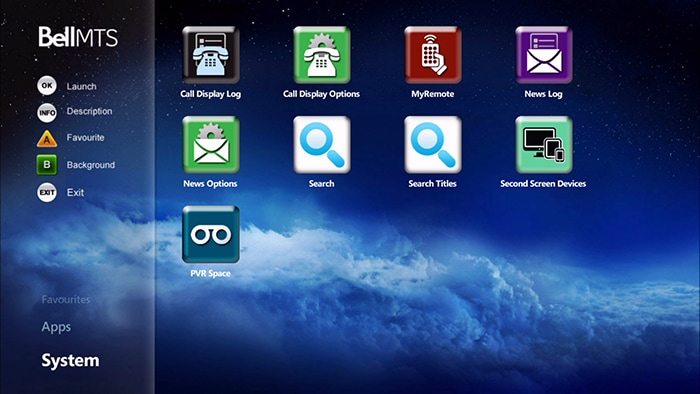
- Use arrow buttons to navigate to the function you would like to launch and press OK.
Tip: To find information about an icon on this page, use the arrow buttons to navigate to the icon and press the INFO button for more information.
- Press the Interactive button on the UTV remote control to access the MyMenu application.
- Select the On Demand category which will display the Subscription Video On Demand (SVOD) icons.
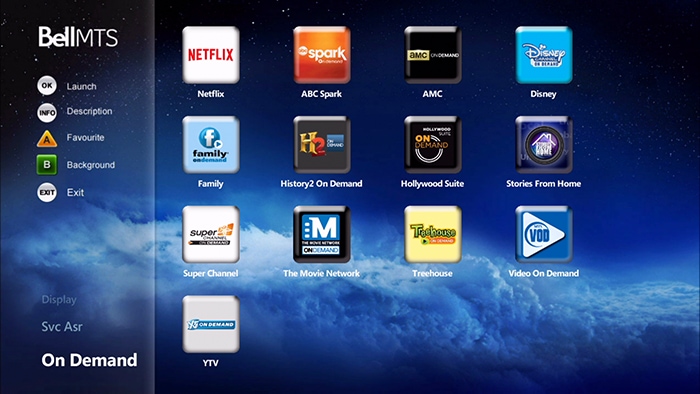
- Use the arrow buttons to select an On Demand icon and press OK, the selected Video On Demand category will be presented.
Note: You will be presented with a required services screen if you are not subscribed to the service.