Setting up your eSIM
Once you’ve activated your Bell Mobility plan, select your manufacturer below to set up your eSIM.
Select the brand of device you have
eSIM set up instructions for: Apple
If you need help setting up your eSIM, visit our eSIM FAQ page or call us at 1 800 667-0123.
eSIM set up instructions for: Samsung
If you need help setting up your eSIM, visit our eSIM FAQ page or call us at 1 800 667-0123.
eSIM set up instructions for: Motorola
For a newly purchased device
If an eSIM was reserved on your device when you bought it from us, turn on your device and follow the initial setup prompts to complete setting up your eSIM. follow these instructions to transfer your existing Mobility service.
For a new or existing Mobility line on your own device
To finish setting up your Bell Mobility line, you’ll need to download and set up the eSIM on your phone.
If you are bringing your phone number to Bell from another carrier, transfer your phone number first.
-
Setting up eSIM in the MyBell app
If you use the MyBell app to activate a Mobility line on eSIM, you’ll be prompted to set up your eSIM in the app after placing your order.
If you haven’t completed your eSIM setup, log in to the app and select Set up eSIM. The steps below won’t apply.
-
Setting up eSIM via notification sent to your device
After activating your Bell Mobility line on eSIM, you should receive a notification on your device that says your cellular plan is ready to be installed. Touch the notification and follow the prompts to set up your eSIM. You can also find the notification by going to Settings on your device.
-
Setting up eSIM via QR code or activation code
If you did not receive the eSIM notification, follow the instructions below to set up your eSIM.
You must have an eSIM-capable Motorola device and have reserved an eSIM on a Mobility line to continue setting up your eSIM. Make sure your device is connected to Wi-Fi or the mobile network.
- Go to Settings > Network & Internet.
- Select Mobile Network.
- Select Set up an eSIM.
- Follow the prompts to set up your eSIM. Make sure to toggle on your Bell eSIM profile when prompted.
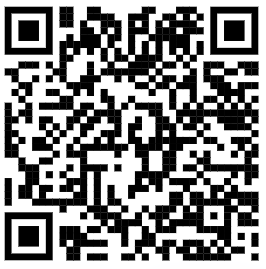
In some cases, you may be prompted to scan a QR code instead. Scan the QR code below and follow the instructions.
- Select Enter Activation Code
- In the Activation Code field, paste or type:
bmc.prod.ondemandconnectivity.com
- Follow the prompts to complete your eSIM setup.
Alternatively, you can enter the details manually if needed
eSIM set up instructions for: Other brands
For instructions on how to set up your eSIM, please consult the manufacturer's user guide.
If you need help setting up your eSIM, visit our eSIM FAQ page or call us at 1 800 667-0123.
eSIM set up instructions for: Google
If you need help setting up your eSIM, visit our eSIM FAQ page or call us at 1 800 667-0123.
eSIM set up instructions for: Other brands
For instructions on how to set up your eSIM, please consult the manufacturer's user guide.
For a newly purchased device
If an eSIM was reserved on your iPhone or iPad when you bought it from us, turn on your device and follow the initial setup prompts to complete setting up your eSIM.
If you are switching to a new Apple device, follow these instructions to transfer your existing Mobility service.
For a new or existing Mobility line on your own device
To finish setting up your Bell Mobility line, you’ll need to download and set up the eSIM on your Apple device.
If you are bringing your phone number to Bell from another carrier, transfer your phone number first.
-
Setting up eSIM in the MyBell app
If you use the MyBell app to activate a Mobility line on eSIM, you’ll be prompted to set up your eSIM in the app after placing your order.
If you haven’t completed your eSIM setup, log in to the app and select Set up eSIM. The steps below won’t apply.
-
Setting up eSIM via notification sent to your device
After activating your Bell Mobility line on eSIM, you should receive a notification on your device that says your cellular plan is ready to be installed. Tap on the notification and follow the prompts to set up your eSIM. You can also find the notification by going to Settings on your device.
-
Setting up eSIM via QR code or activation code
If you did not receive the eSIM notification, follow the instructions below to set up your eSIM. Make sure your Apple device is on iOS 13.0 or above and connected to the Internet (Wi-Fi or mobile network).
- Go to Settings > Cellular > Add eSIM (or Add Cellular Plan).
- If prompted, select Use QR Code.
-
Scan the following QR code and follow the prompts:
Alternatively, you can enter the details manually:
- Select Enter Details Manually.
-
In the SM-DP+ Address field, paste or type:
bmc.prod.ondemandconnectivity.com - Leave the Activation Code field blank.
For a newly purchased device
If an eSIM was reserved on your device when you bought it from us, turn on your device and follow the initial setup prompts to complete setting up your eSIM.
If you are switching to a new device, follow these instructions to transfer your existing Mobility service.
For a new or existing Mobility line on your own device
To finish setting up your Bell Mobility line, you’ll need to download and set up the eSIM on your Samsung device.
If you are bringing your phone number to Bell from another carrier, transfer your phone number first.
-
Setting up eSIM in the MyBell app
If you use the MyBell app to activate a Mobility line on eSIM, you’ll be prompted to set up your eSIM in the app after placing your order.
If you haven’t completed your eSIM setup, log in to the app and select Set up eSIM. The steps below won’t apply.
-
Setting up eSIM via notification sent to your device
After activating your Bell Mobility line on eSIM, you should receive a notification on your device that says your cellular plan is ready to be installed. Tap on the notification and follow the prompts to set up your eSIM. You can also find the notification by going to Settings on your device.
-
Setting up eSIM via QR code or activation code
If you did not receive the eSIM notification, follow the instructions below to set up your eSIM. Make sure, your Samsung device is operating on Android 12.0 or higher and connected to the Internet (Wi-Fi or mobile network).
- Open Settings > Connections > SIM Manager.
- Select Add eSIM > Scan Carrier QR Code.
-
The Camera will open. Scan the following QR code and follow the
prompts:
Alternatively, you can enter the details manually:
- Select Enter Activation Code.
-
In the Activation Code field, paste or type:
bmc.prod.ondemandconnectivity.com - Follow the onscreen prompts.
For a newly purchased device
If an eSIM was reserved on your device when you bought it from us, turn on your device and follow the initial setup prompts to complete setting up your eSIM.
If you are switching to a new device, follow these instructions to transfer your existing Mobility service.
For a new or existing Mobility line on your own device
To finish setting up your Bell Mobility line, you’ll need to download and set up the eSIM on your Google Pixel phone.
If you are bringing your phone number to Bell from another carrier, transfer your phone number first.
-
Setting up eSIM in the MyBell app
If you use the MyBell app to activate a Mobility line on eSIM, you’ll be prompted to set up your eSIM in the app after placing your order.
If you haven’t completed your eSIM setup, log in to the app and select Set up eSIM. The steps below won’t apply.
-
Setting up eSIM via notification sent to your device
After activating your Bell Mobility line on eSIM, you should receive a notification on your device that says your cellular plan is ready to be installed. Tap on the notification and follow the prompts to set up your eSIM. You can also find the notification by going to Settings on your device.
-
Setting up eSIM via QR code or activation code
If you did not receive the eSIM notification, follow the instructions below to set up your eSIM. Make sure your Google Pixel phone is operating on Android 10 or higher and connected to the Internet (Wi-Fi or mobile network).
- Go to Settings > Network & Internet.
- Select SIMs.
- Select Download a SIM instead.
- Select Next and follow the steps.
- Select Activate.
-
If prompted to confirm your network, select Bell.
If Bell is not listed, select
Use a different network and scan the following QR
code:
Alternatively, you can enter the details manually:
- Select Need Help at bottom of the screen. If prompted to confirm your network, select Bell.
- Select Enter it manually.
-
Enter or paste the code below:
bmc.prod.ondemandconnectivity.com