How to view current and past bills and payments
Discover the tools and features under My bills and payments.
Current and previous bill summary
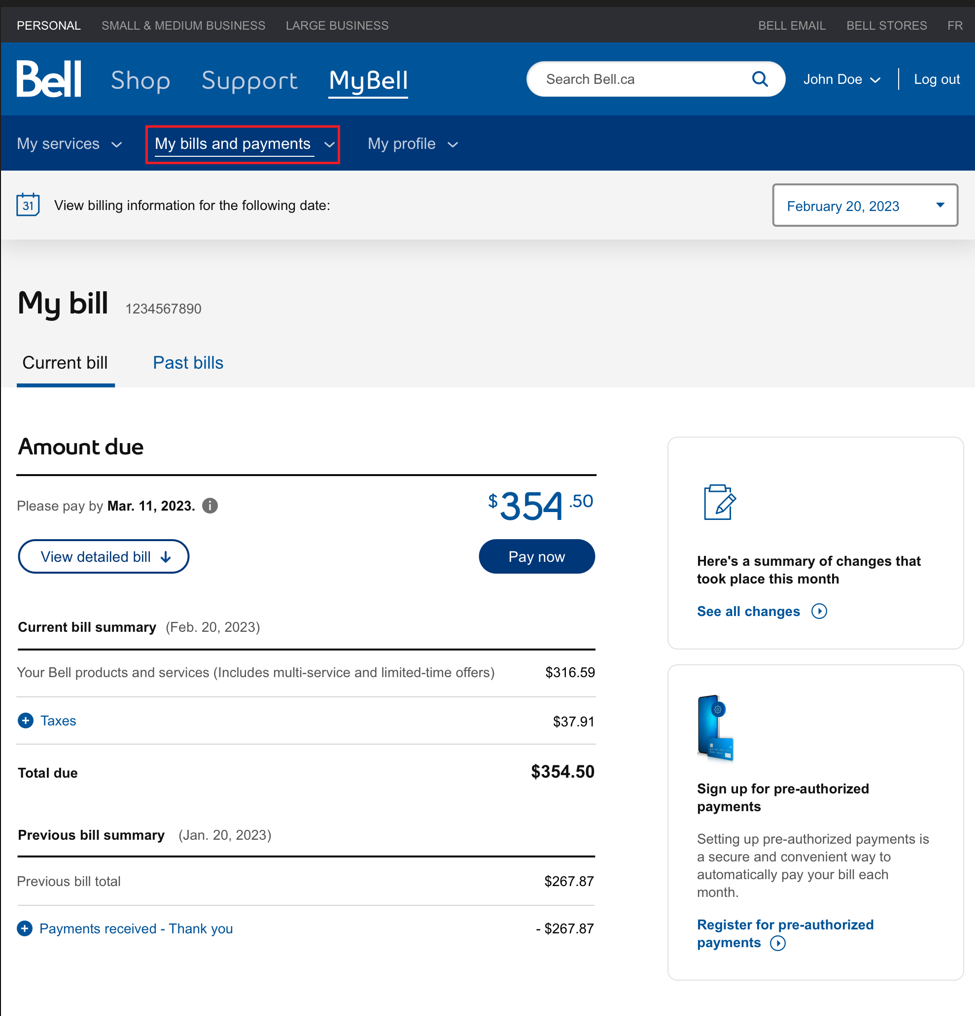
Upon accessing your bill, you will see the current and previous bill summary, which include:
- Your account number: this number will be required for any account-related inquiries.
- Pay by date: if you have an outstanding balance, please pay the amount due by this date. If your bill payment is overdue, you may be notified here. Please note: if you have pre-authorized payments set up, your payment withdrawal date will be displayed.
- Charges for your Bell services: current charges for your Bell services (including any promotions).
- Previous bill remaining balance: any unpaid balance from your previous bill that has carried forward into the current bill.
- Total amount due: the amount you owe on this bill, which includes your Bell services, any applicable taxes, balance owing from your last bill and late payment charges (if applicable).
- Previous bill total: the total amount due on your previous bill.
- Payments received: all payments made towards your previous bill.
Detailed bill
Scrolling past the current bill summary, you are able to view your detailed bill. It provides an in-depth look at your Bell services, charges and promotions, and can be sorted by product or address.
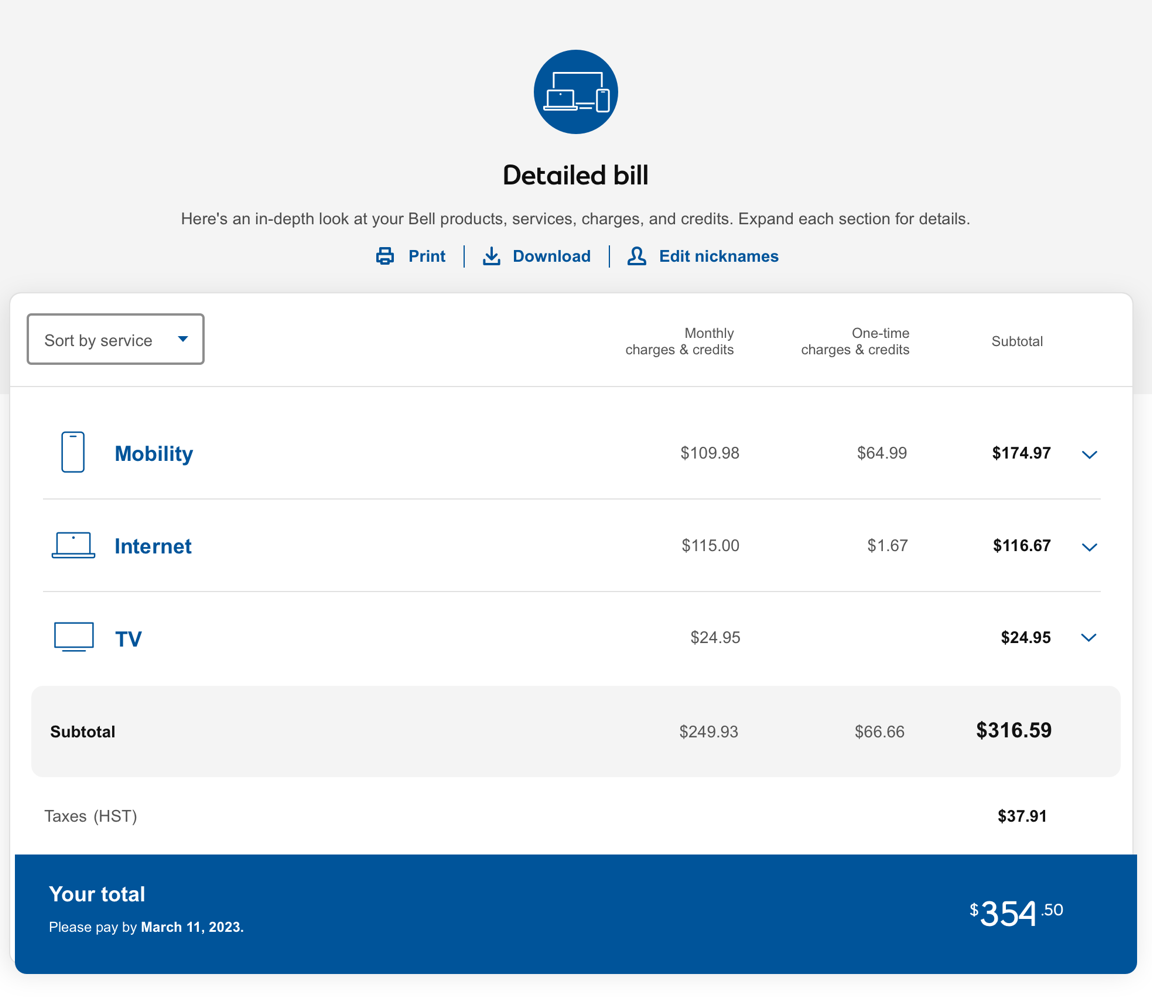
Your detailed bill displays your monthly charges and one-time charges.
To look at specific charges for a subscriber:
- Expand the service category you are interested in looking at.
- If you have multiple subscriptions, select the subscriber you are interested in looking at.
- The detailed bill displays three columns: Monthly charges & credits, One-time charges & credits, and Subtotal.
- The Monthly charges & credits column includes any ongoing charges that repeat each month (e.g., rate plans, equipment rentals, monthly promotions).
- The One-time charges & credits column includes charges associated with the activities for the specific month for which you are billed (e.g., usage, service changes, or events outside the course of your regular services such as installation fees).
- The Subtotal is the sum of your monthly and one-time charges.
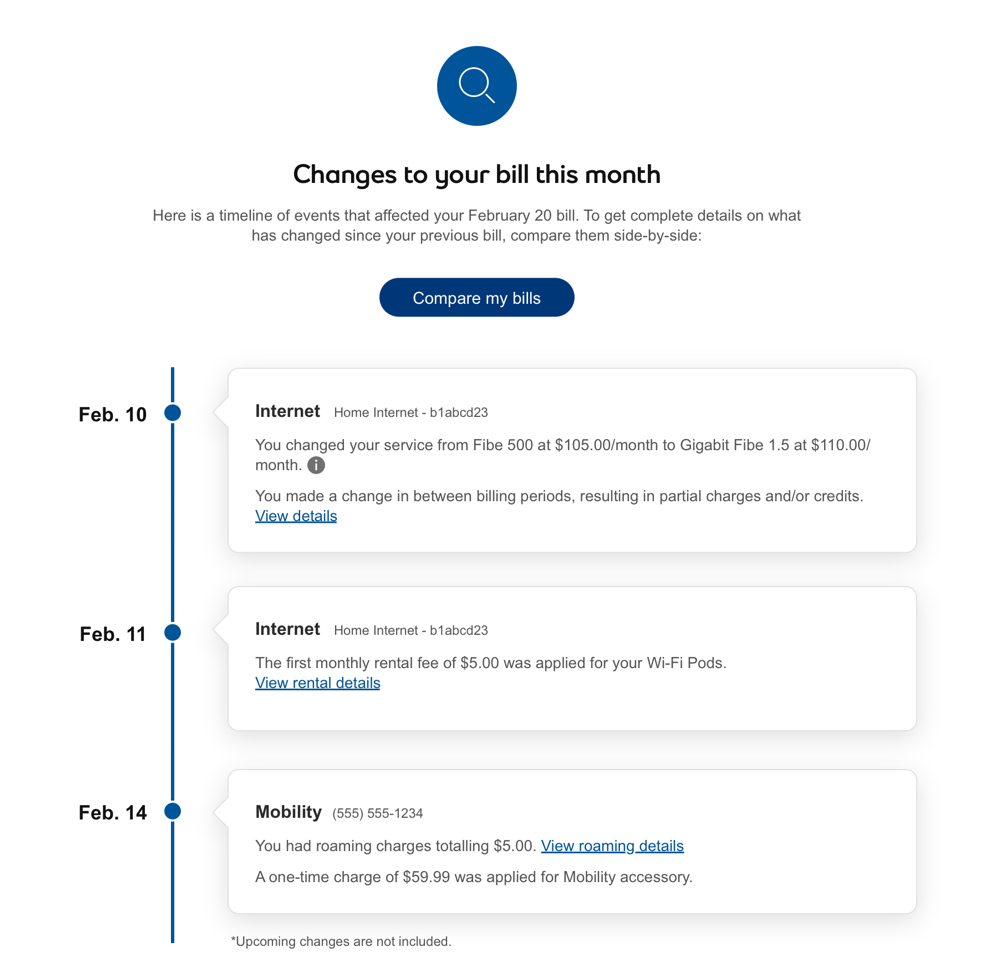
The “what’s changed” tile and timeline chronologically display events that resulted in changes on your bill.
The “what’s changed” tile is located above your detailed bill and only appears if there are changes to your bill.
The “what’s changed” timeline is located below your detailed bill.
Discover how to view past bills and payments, and how to compare bills.
- Once logged in to MyBell, you will be redirected to the My services page.
- Select the My bills and payments tab.
- Select the bill you would like to view.
- Your current bill will be displayed.
- Select the Past bills tab (located next to the Current bill tab).
- Scroll down to view your Detailed history.
- Select the magnifying glass icon to open a past bill.
Past bills & payments
The Past bills tab displays your billing trends over the last four months. Scroll down to view your detailed billing history. Your billing history will display your past bills from up to 18 months.
The checkmark beside a specific bill indicates that the bill contained important messages (e.g., rate adjustments).
Selecting the magnifying glass icon allows you to open your past bill in the same format as the current bill.
The download icon allows you to download a past bill.
Select the Payments tab to view your detailed payment history. It provides details such as the date of the payment, the payment method and the amount paid.
Compare bills
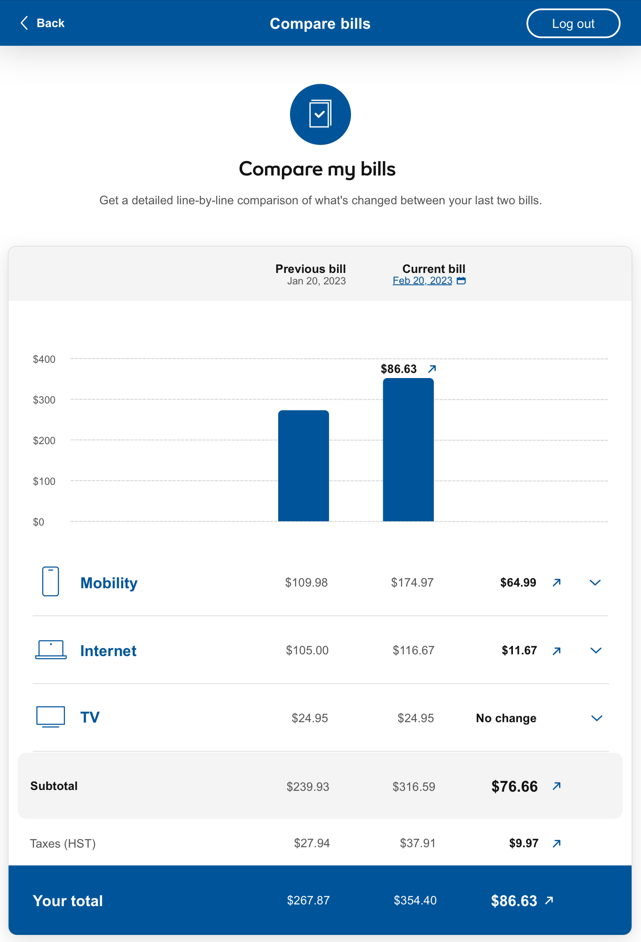
The “compare my bills” feature provides a side-by-side comparison between your current bill and your selected previous bill with line-by-line detail for all the subscribers and services on your account.
To compare a past bill with your current bill:
- Select the Compare my bills button on the Bill History page.
- Select the Selected bill dropdown menu to select a past bill to compare with the bill before it.
- A line-by-line comparison is displayed between the two bills for all your services.
- You can select the service and/or subscriber section to expand it and view more details.