My Bell app: How to recover your MyBell profile and reset your password


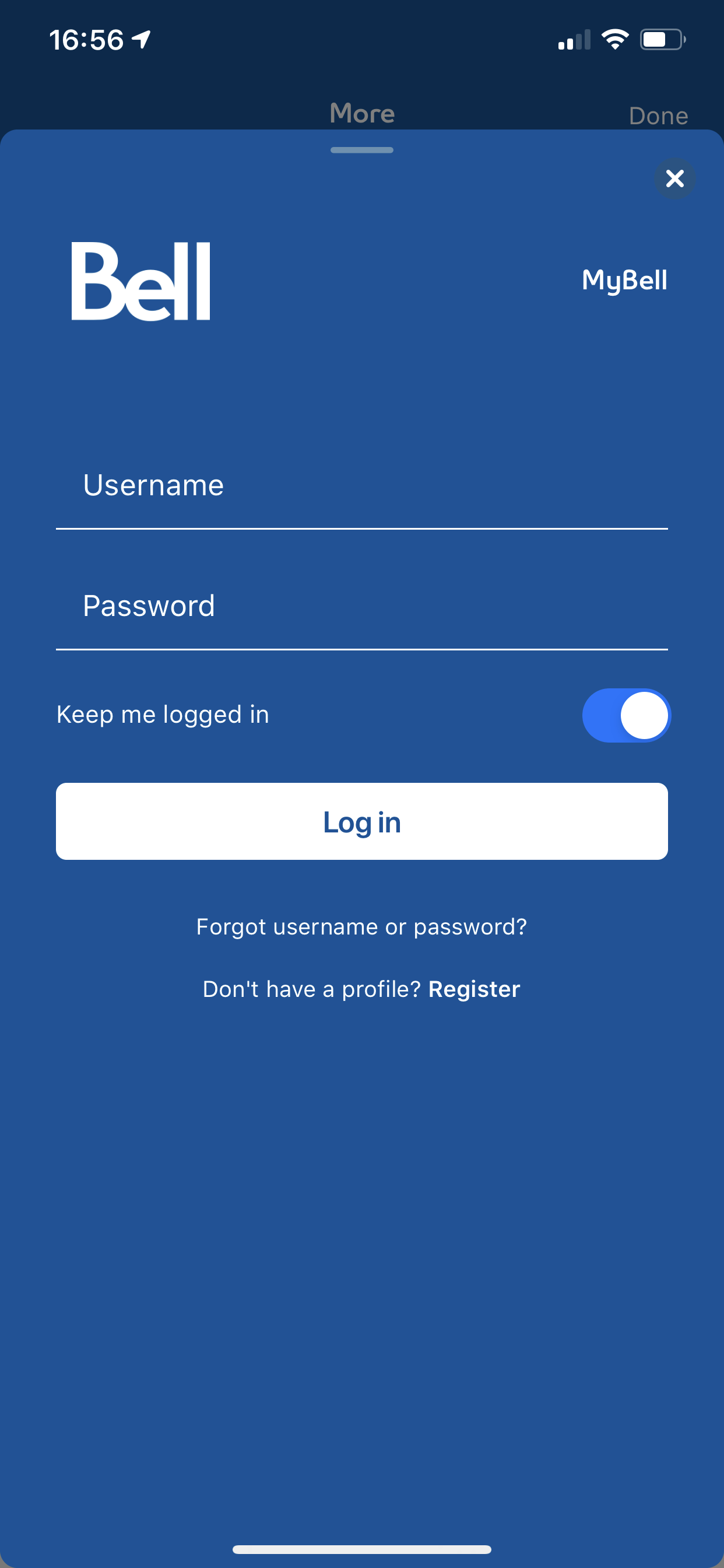
Step 3 of 8
Enter the email address you used when creating your MyBell profile, or your account/phone number.
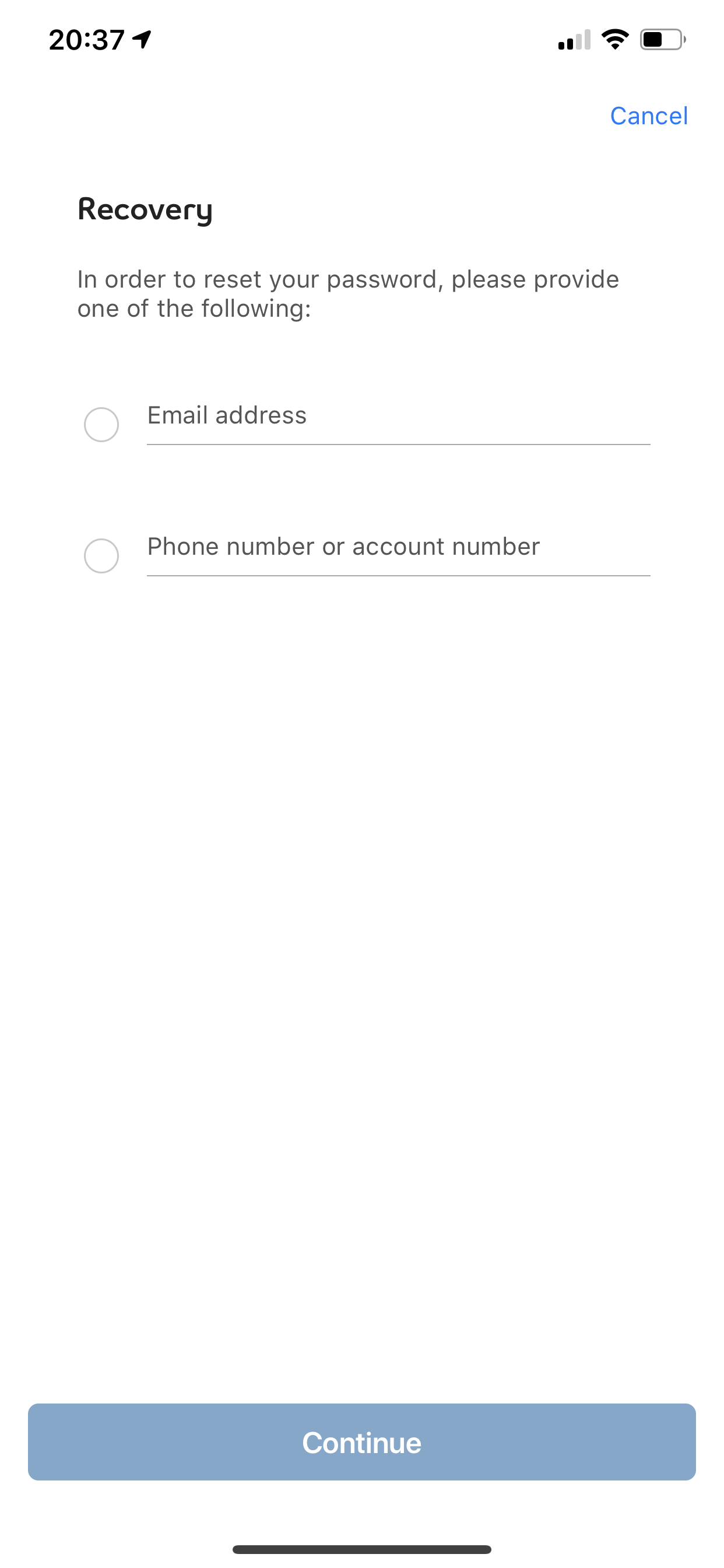

Step 4 of 8
Check your email. You will receive a message with your username and a link to reset your password, if required.
If you prefer to receive this information by text or to answer your security questions instead, touch Try a different reset option.
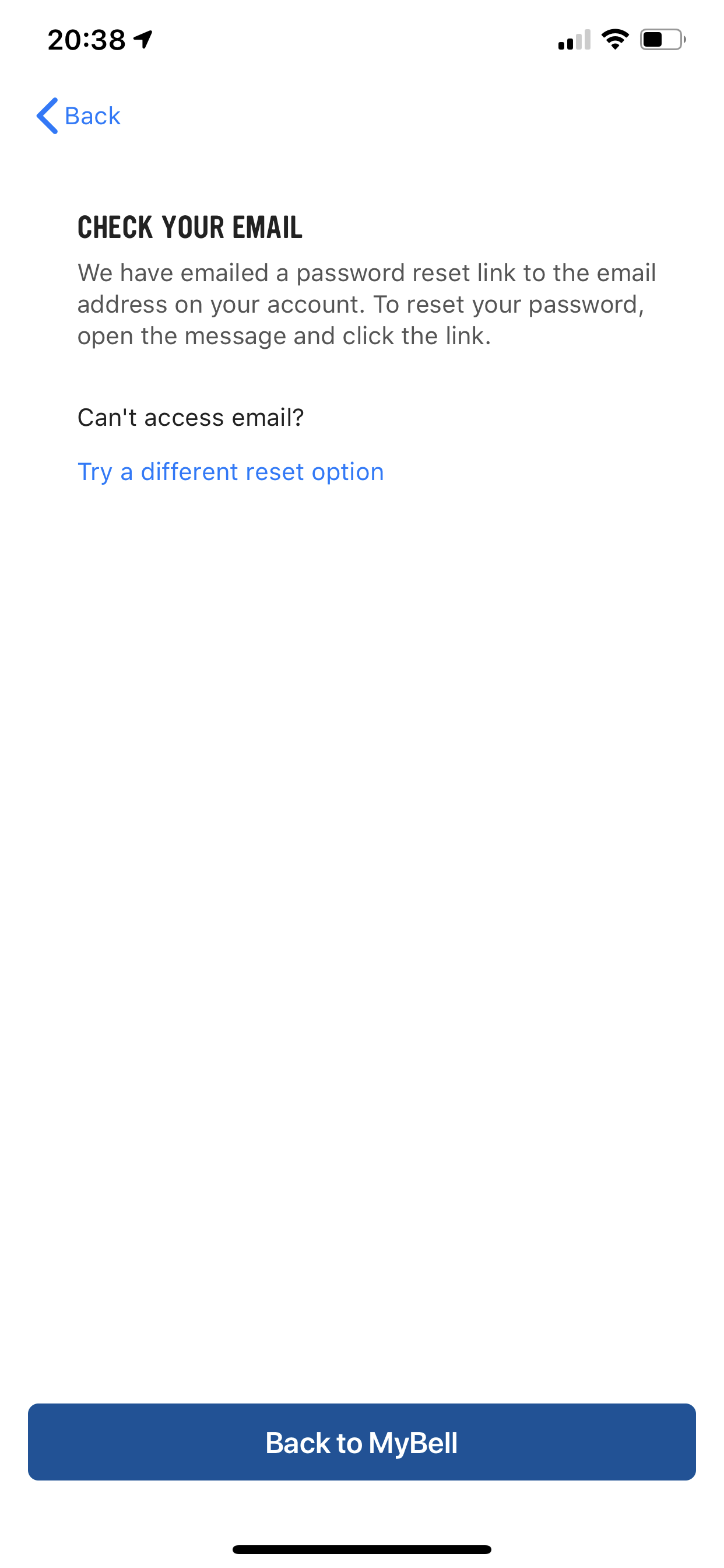
Step 5 of 8
To reset your password click on the Change your password link in the email.
Step 6 of 8
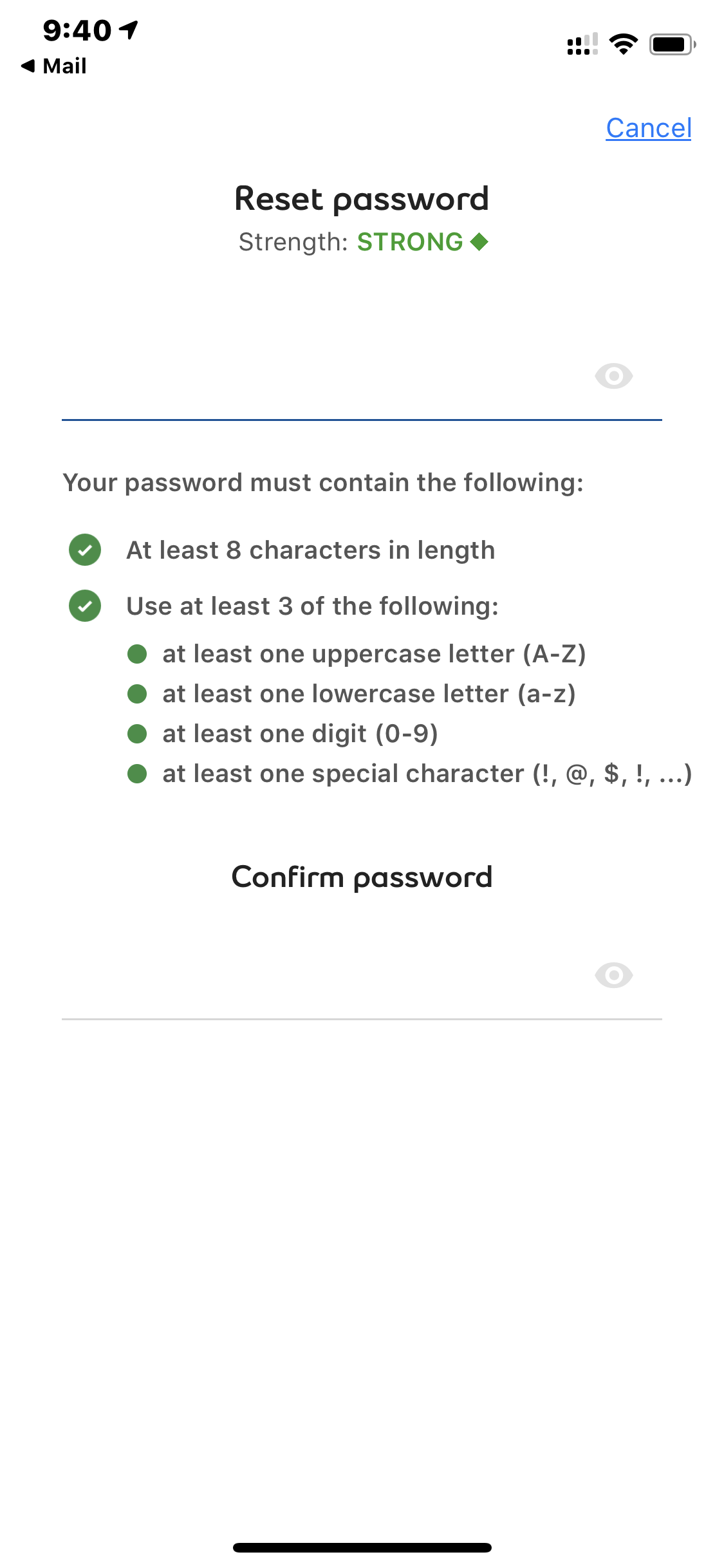
Create your new password. Your password must be at least 8 characters in length and contain 3 or more of the following:
- at least one upper case letter (A-Z)
- at least one lower case letter (a-z)
- at least one digit (0-9)
- at least one special character (!,@,#,$, …)
- Launch the MyBell app on your device.
- On the login screen, touch Forgot your username or password?
- Enter the email address you used when creating your MyBell profile, or your account/phone number.
- Check your email. You will receive a message with your username and a link to reset your password, if required.
If you prefer to receive this information by text or to answer your security questions instead, touch Try a different reset option. - To reset your password click on the Change your password link in the email.
- Create your new password. Your password must be at least 8 characters in length and contain 3 or more of the following:
- at least one upper case letter (A-Z)
- at least one lower case letter (a-z)
- at least one digit (0-9)
- at least one special character (!,@,#,$, …)
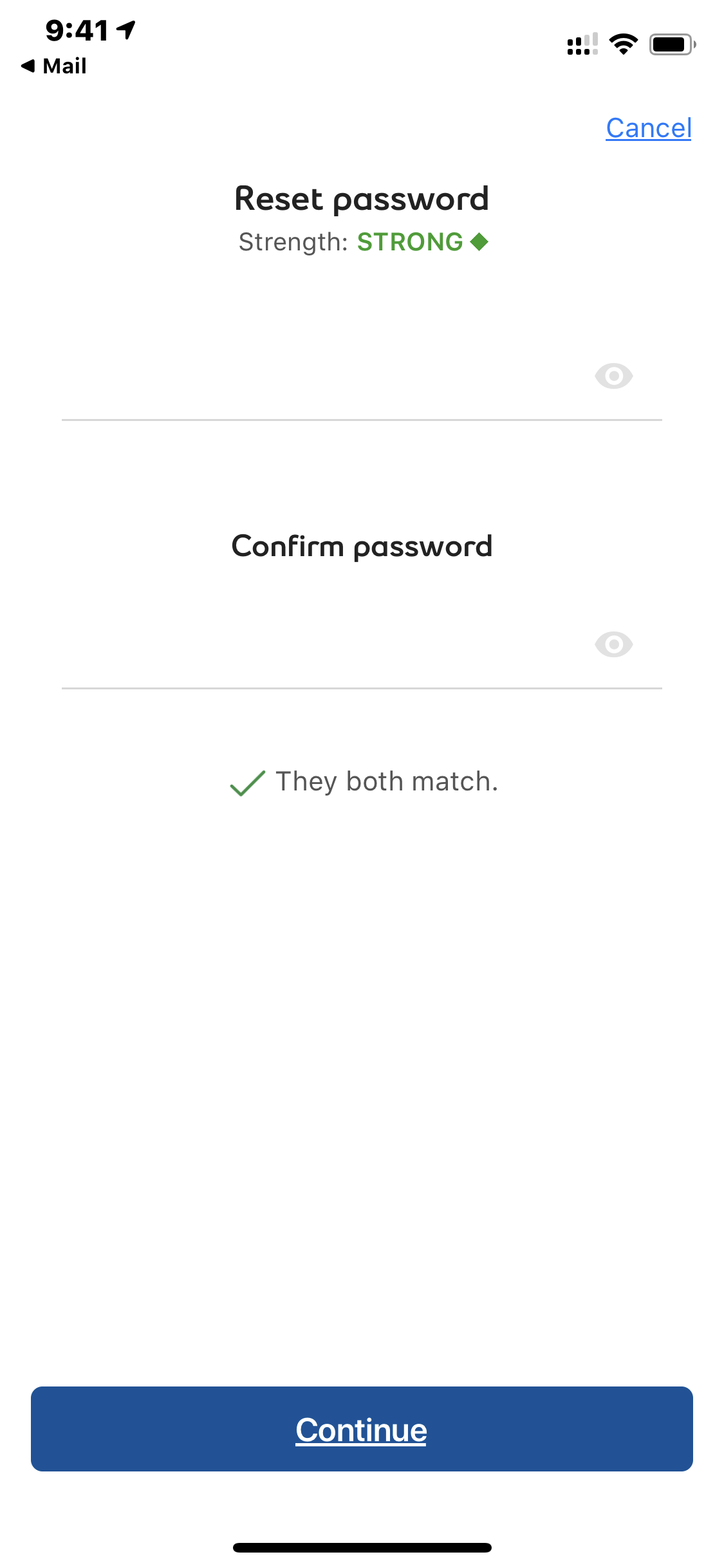
- Confirm your password and touch Continue.
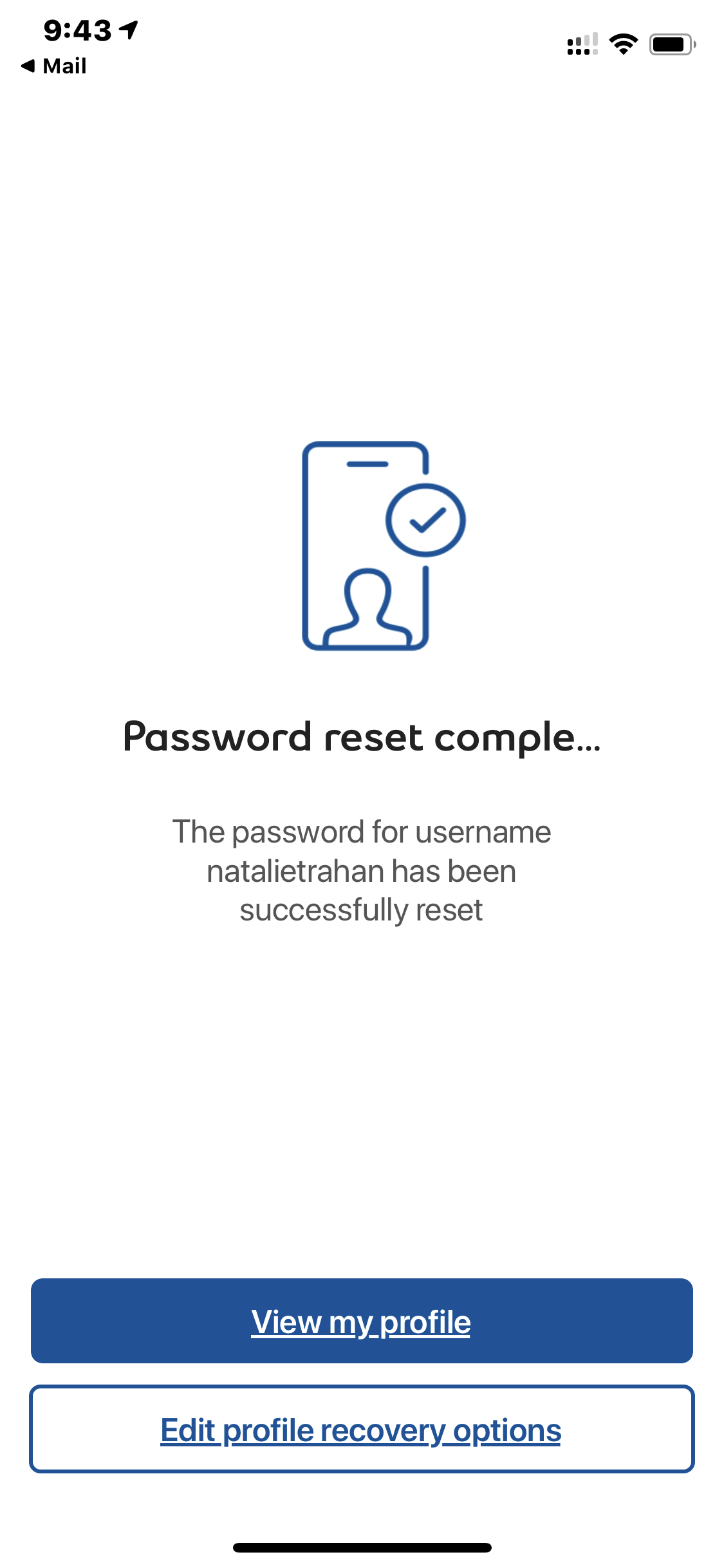
- Touch View my profile to go to the account overview screen.