How to order Pay-per-view on Fibe TV
Nova
Steps to follow: 8
1. On your Fibe TV remote, press GUIDE.
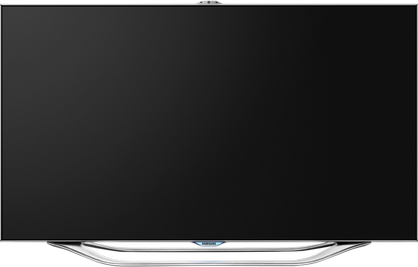

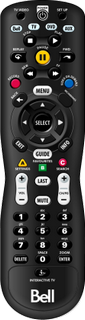

Images may not be exactly as shown.
Note: Pay-per-view channels are identified as Vu! channels, and the letters “PPV” appear in the program titles. If youʼve created a customized guide, some Pay-per-view channels may be hidden.
2. Scroll to the desired time and Pay-per-view channel.
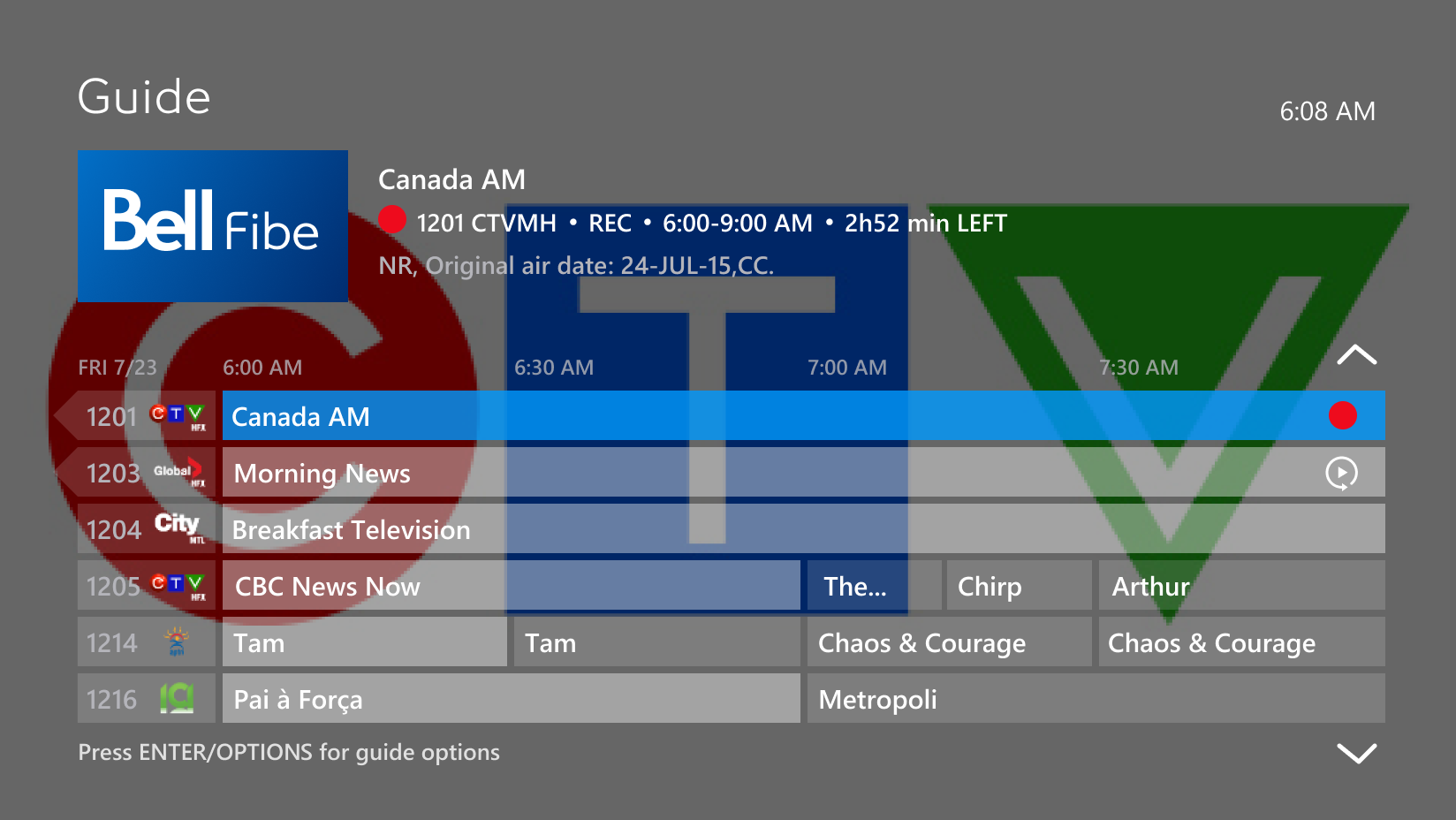

Images may not be exactly as shown.
Note: Pay-per-view channels are identified as Vu! channels, and the letters “PPV” appear in the program titles. If youʼve created a customized guide, some Pay-per-view channels may be hidden.
3. Press SELECT.
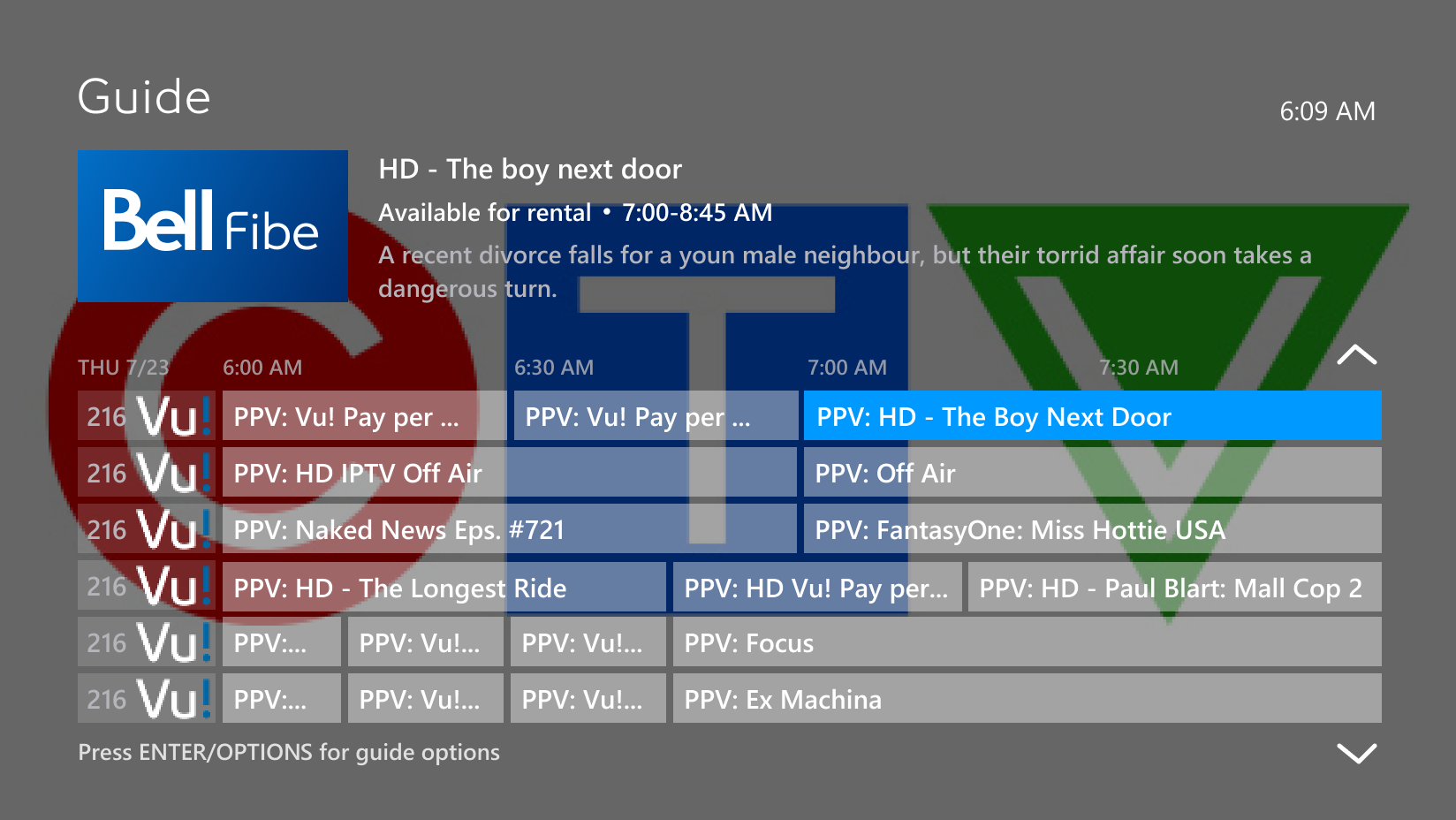
Images may not be exactly as shown.
Note: Pay-per-view channels are identified as Vu! channels, and the letters “PPV” appear in the program titles. If youʼve created a customized guide, some Pay-per-view channels may be hidden.
4. Press SELECT.
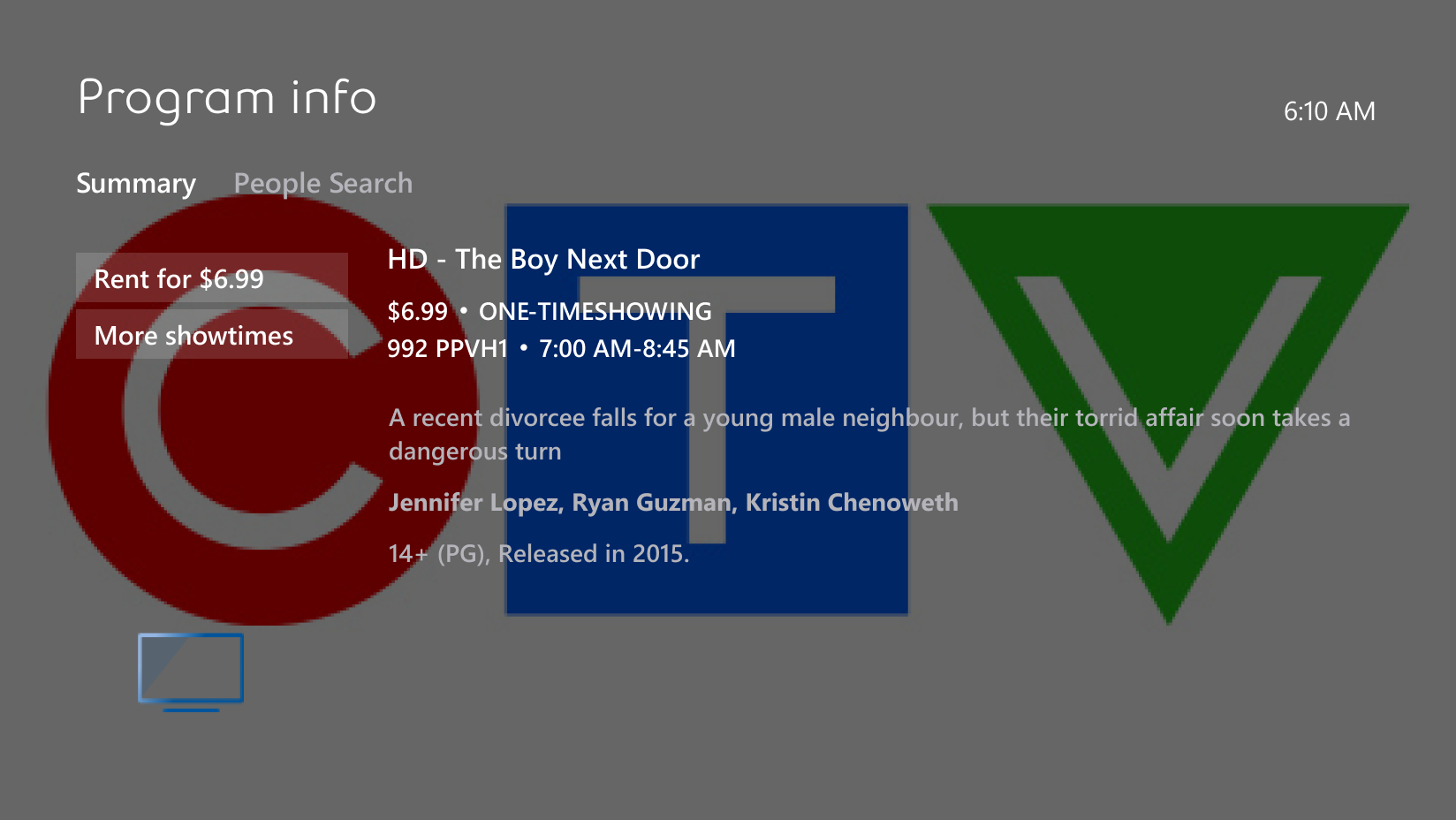
Images may not be exactly as shown.
Note: Pay-per-view channels are identified as Vu! channels, and the letters “PPV” appear in the program titles. If youʼve created a customized guide, some Pay-per-view channels may be hidden.
5. Enter your 4-digit rental PIN.
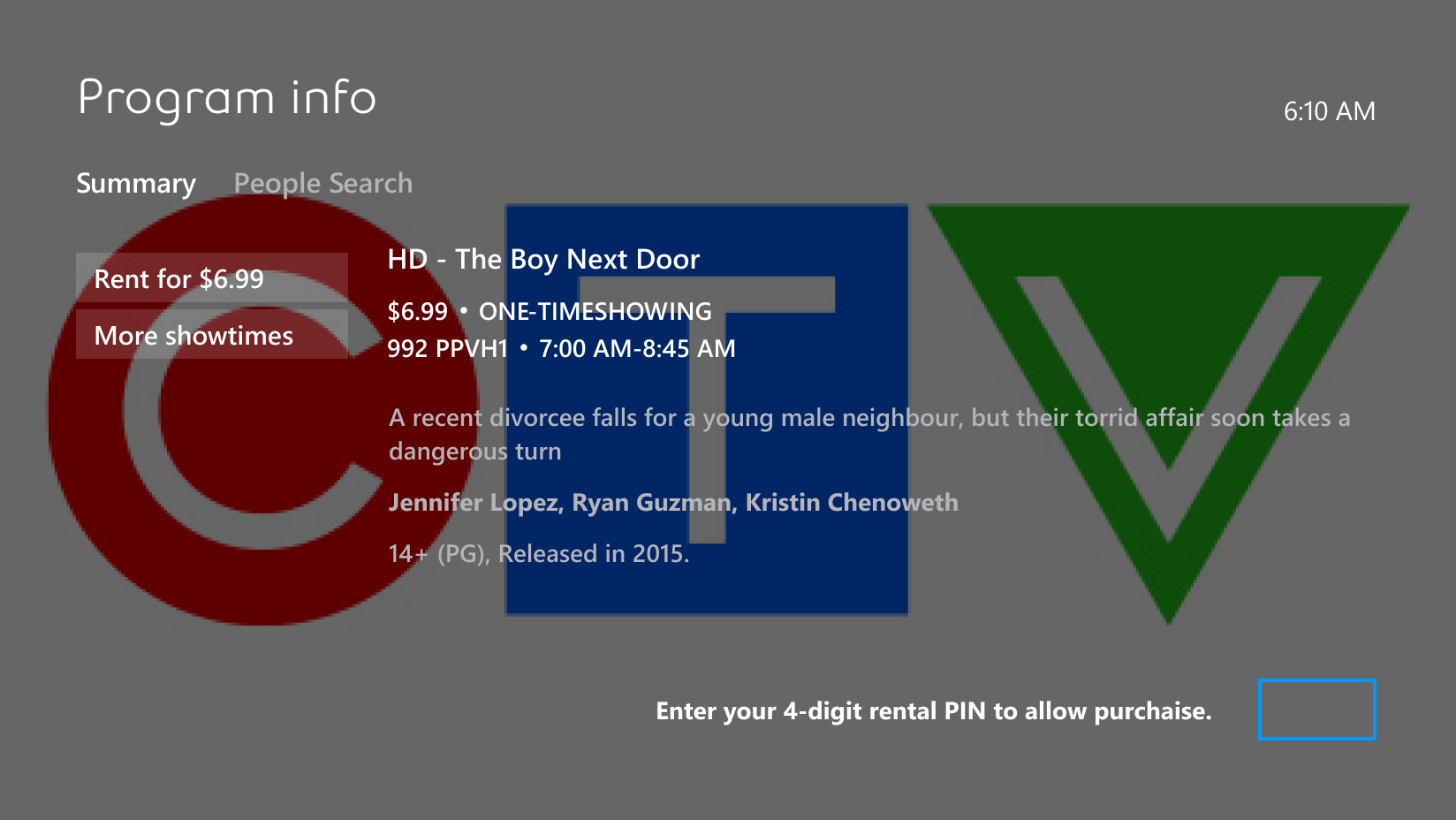
Images may not be exactly as shown.
Note: Pay-per-view channels are identified as Vu! channels, and the letters “PPV” appear in the program titles. If youʼve created a customized guide, some Pay-per-view channels may be hidden.
6. Scroll to the Rent option.
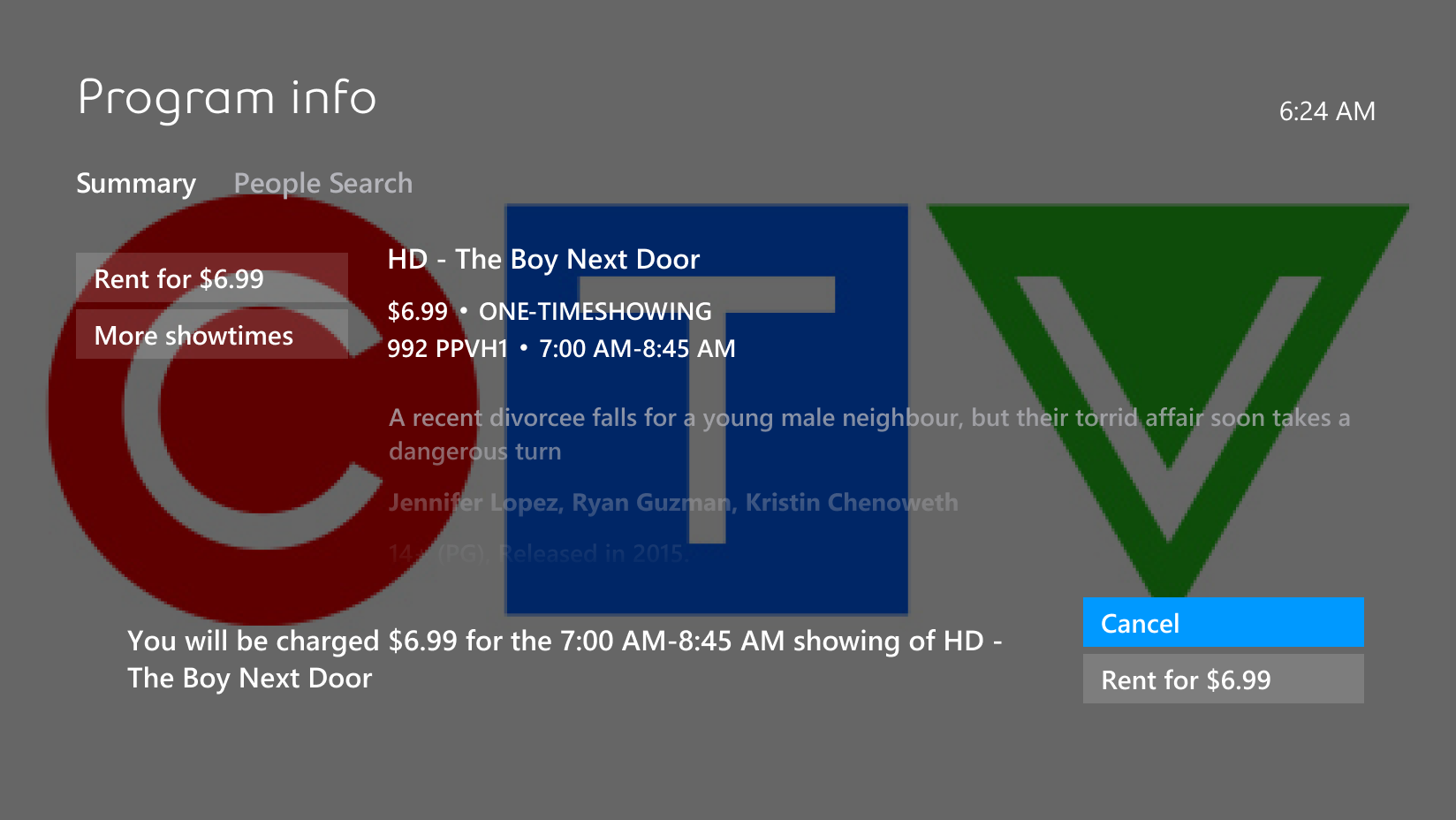

Images may not be exactly as shown.
Note: Pay-per-view channels are identified as Vu! channels, and the letters “PPV” appear in the program titles. If youʼve created a customized guide, some Pay-per-view channels may be hidden.
7. Press SELECT.
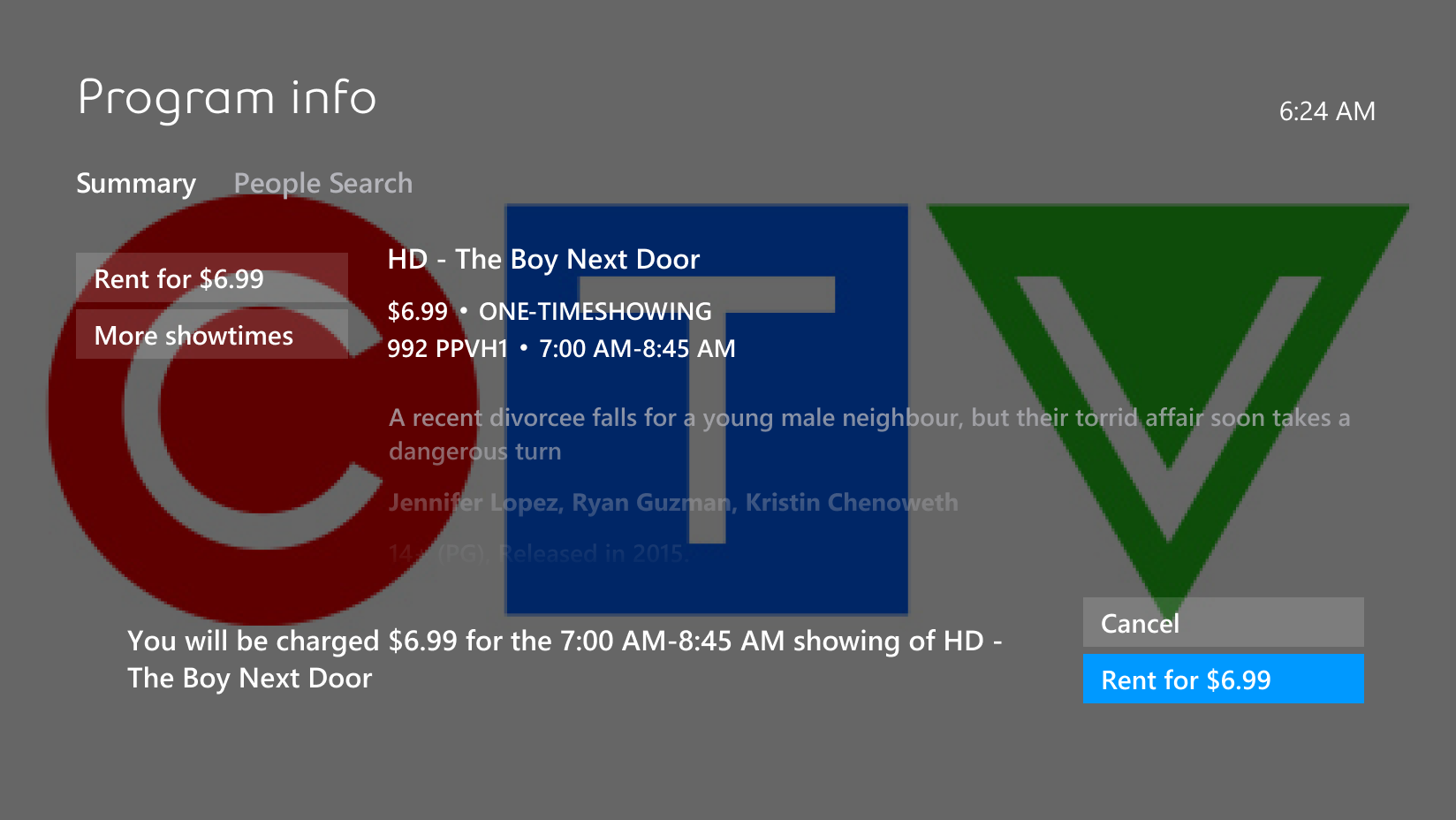
Images may not be exactly as shown.
Note: Pay-per-view channels are identified as Vu! channels, and the letters “PPV” appear in the program titles. If youʼve created a customized guide, some Pay-per-view channels may be hidden.
8. You can now watch the Pay-per-view channel.
Images may not be exactly as shown.
Note: Pay-per-view channels are identified as Vu! channels, and the letters “PPV” appear in the program titles. If youʼve created a customized guide, some Pay-per-view channels may be hidden.
.png)