How to manage call, text and email settings on my Samsung Galaxy Z Fold smartphone
- Swipe up or down to view the apps.
- Touch Phone.
-
Touch the Menu icon.
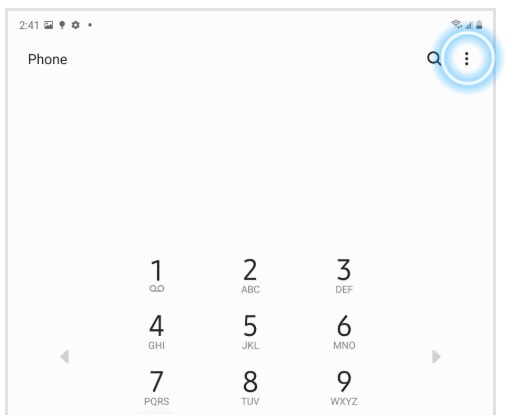
Images may not be exactly as shown.
- Touch Settings.
- Scroll to and touch Supplementary services.
-
Touch Show my caller ID.
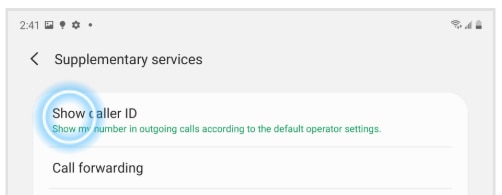
Images may not be exactly as shown.
-
Touch the desired option (e.g., Hide number).
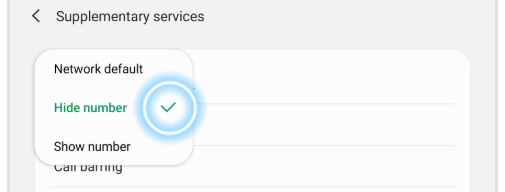
Images may not be exactly as shown.
- The caller ID option has been changed.
- Swipe up or down to view the apps.
- Touch Messages.
-
Touch the Compose icon.
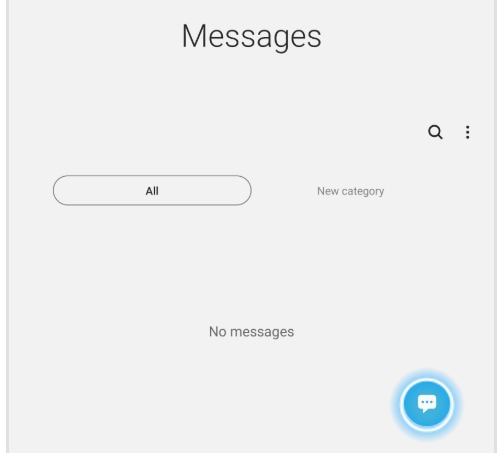
Images may not be exactly as shown.
- Enter the recipientʼs mobile phone number or select someone from your contacts list.
- Enter your message.
-
Touch the Send icon to send the text message or touch the
> and then the picture icon to make
this a multimedia message.
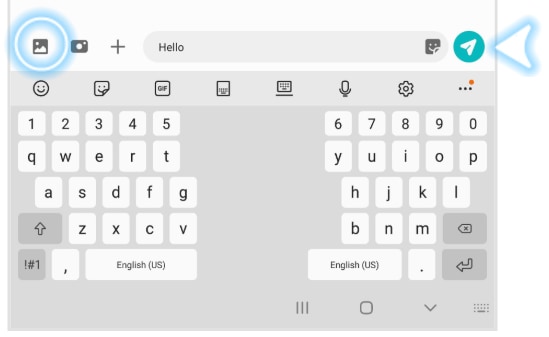
Images may not be exactly as shown.
- Touch a photo to attach it.
- Touch the Send icon.
- The message has been sent.
- Swipe up or down to view the apps.
- Touch Settings.
-
Scroll to and touch Accounts and backup.
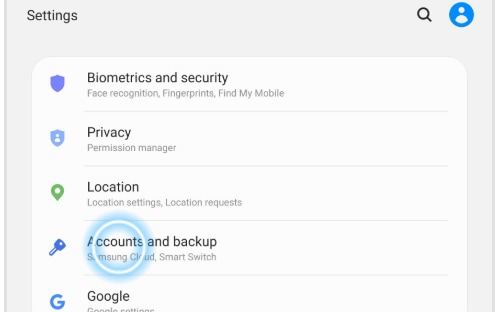
Images may not be exactly as shown.
- Touch Add account.
-
Scroll to and touch Personal (IMAP).
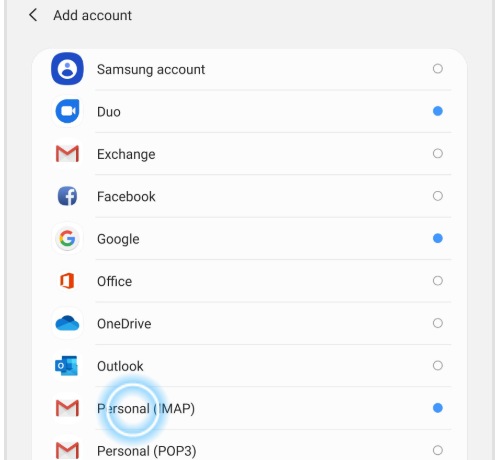
Images may not be exactly as shown.
- Enter your Bell email address. Touch NEXT.
- Enter your Bell email password.
- Touch NEXT.
- If the email account details are automatically recognized, the account will be added.
- Change the account options if desired and touch NEXT.
- Change the account name and your name if desired and touch NEXT.
- Your email account has been added.
- Swipe up or down to view the apps.
- Touch Phone.
-
Touch the Menu icon.
Images may not be exactly as shown.
- Touch Settings.
-
Touch Block/Blocked numbers.
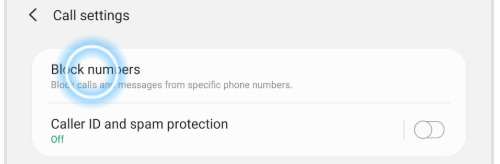
Images may not be exactly as shown.
- To add a phone number to the block list, enter the phone number.
- Touch the + icon.
- The phone number has been added.
-
To remove a phone number from the block list, touch the
- icon next to the phone number.
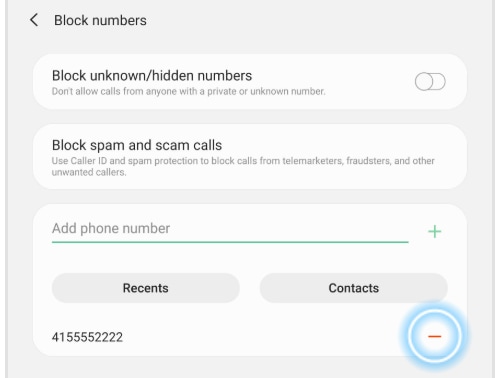
Images may not be exactly as shown.
- The phone number has been removed.
- Swipe up or down to view the apps.
- Touch Phone.
-
Touch the Menu icon.
Images may not be exactly as shown.
- Touch Settings.
-
Scroll to and touch Supplementary services.
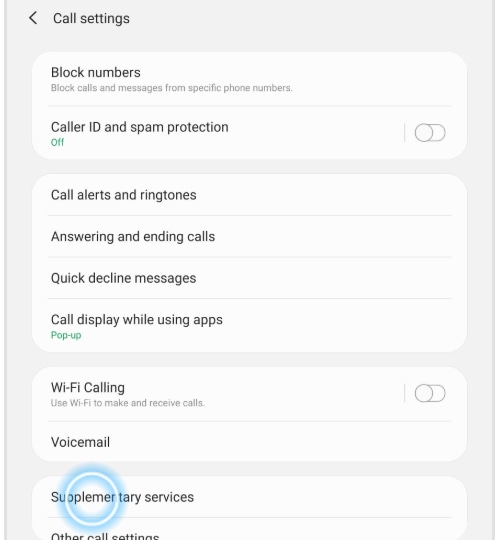
Images may not be exactly as shown.
-
Touch Call forwarding.
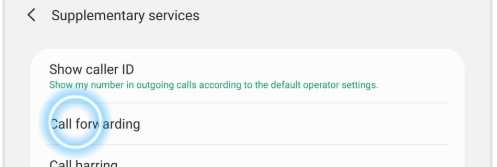
Images may not be exactly as shown.
- Touch the desired call forwarding option (e.g., Forward when busy).
- Enter the phone number.
- Touch ENABLE.
- Call forwarding has been set up. To disable call forwarding, touch the desired call forwarding option.
- Touch DISABLE.
- Call forwarding has been disabled.
Applicable to:
Samsung Galaxy Z Fold2 5G, Fold3 5G, Fold4, Fold5, Fold6, Fold7, Fold8, Fold8 Ultra


Join the conversation in our community forums
Find even more support by searching topics or posting questions in our forum.
 Join the conversation by scanning the QR code.