Using the Fibe TV app on a mobile device
- Touch Home to view featured content.
- Touch Guide to view the programming guide.
- Touch Shows to view on-demand shows.
- Touch Movies to view on-demand movies.
- Touch Recordings to view the shows you recorded and those that are scheduled to be.
- Touch My watchlist to find saved shows, movies and downloads easily.
- Touch the Settings icon
 to manage everything from favourites to paired devices.
- From any screen in the app, touch the magnifying glass icon
 .
. - Type what you're searching for into the box, then touch Search.
- Browse the top results in each section by swiping left and right.
- To see more results within a section, touch the View more results button at the end of the row.
- Touch any of the tabs to jump to a specific section of the search results.
- Select the Guide tab.
- From the guide, touch the filter icon
 .
. - Select checkboxes to add (or remove) as many filters as you like. You can filter by:
- Subscribed channels.
- Favourites.
- Genres (e.g.,: Sports, Movies, Family, etc.).
- Language (English or French).
- Quality (HD, SD, Best quality or Audio) - with Best quality, SD channels are shown only when HD is not available.
- Touch the X to go back to the guide.
The Movies and Shows sections contain on-demand content that is part of your subscriptions, as well as content that can be rented or purchased.*
- Select a shortcut at the top of the Movies or Shows sections to easily navigate to different categories.
- To view channels, touch the shortcut or scroll to the bottom of the section.
- Within the Movies section, touch the Rentals shortcut to rent or purchase available content.
- Touch View All to see more content within that category.
*Renting or purchasing content is only available on Android devices.
- From any of the sections, touch the show or movie you want to add to your watchlist.
- Touch My watchlist
 to add it.
 - To remove it, touch Remove
 .
. - To view your watchlist, touch the My watchlist icon on the bottom menu.
Set a recording
- From the guide, touch the program that you want to record.
- Touch Record.
- Select your desired options (record entire series, how long to keep the recording, extend the recording window, etc.).
- Touch Record to confirm.
Change or cancel a scheduled recording
- Touch Recordings.
- Touch Scheduled.
- Touch the recording you wish to cancel or change.
- Touch Settings .
- To make changes, edit any of the options and then touch Save.
- To cancel the recording, touch Cancel episode or Cancel series.
Browse, watch or delete a recording
- Touch Recordings.
- The Recordings tab shows everything that is currently recorded on your PVR.
- Recordings from the last seven days are shown at the top in the New recordings row.
- All your recorded movies are grouped together in the second row.
- Each recorded TV show has its own row on the page, with the rows in alphabetical order. Swipe up and down to navigate around the page.
- To watch a recording, select the one you want to watch and touch Play.
- Playback is only available on your device for 60 days.
- A recording in progress can only be watched 30 minutes after its completion.
- Some recordings may only be available for playback on your receiver.
- To delete a recording, select the one you want to delete and touch Delete.
Downloading content*
- Select the recording or on-demand content that is available for download
- Touch the Download button.
The content starts downloading. The onscreen message will change from “Downloading” to “Downloaded” once complete.
- To delete a download, select it and touch Delete download only.
The downloaded content is saved to your device and can be found in the My watchlist section of the app. You can now watch it even if you’re offline.
If you’re unable to download a recording or on-demand content, the following might be the reason:
- The recording is older than 60 days.
- It has already been downloaded on another mobile device.
- The on-demand content is not available for download.
- You don’t have a subscription with the content provider.
*Only Fibe TV customers with a PVR will see a Recordings option. All others will only be able to download on-demand content.
Configuring downloads
If you want to download content over your mobile network, follow these steps:
- Touch the Settings icon on the top right.
- Under App Settings, touch Video Quality.
- Enable Download over mobile networks. Mobile data charges may apply.
- To change the quality settings of your downloads, select Set Downloads Quality and choose one of the following:
- Standard: This reduces picture quality but uses less mobile data. The recording or on-demand content also downloads more quickly and uses less space on your device.
- Higher: This gives you the best picture quality but uses more mobile data. It also takes longer to download the recording or on-demand content and uses more space on your device.
- When watching a show, touch the collapse
 icon on the bottom right to open the On now or On Demand guide.
 - Select any program in the guide to start watching it on your device.
- You can also access your Trending, On Now, Recent Channels and Favourites content directly from this view.
- Touch the expand
 icon to return to full screen.
The Fibe TV app allows you to start watching a show on your mobile device and finish it on your TV set. Conversely, you can also start watching a show on your TV set and finish it on your mobile device.
- Touch Remote to display the remote control screen.
- Touch Play on device.
- Select the receiver, smartphone or tablet you would like watch the content with.
- To switch to another device, touch and hold the Play on device icon and swipe up the screen to send content to the last paired receiver.
- To send content to a different receiver or to pair a new receiver, swipe the icon down the screen instead.
Using AirPlay
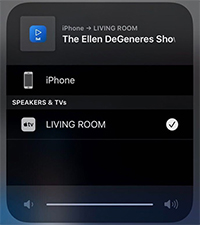
To use AirPlay, you need an Apple mobile device (iPhone or iPad) and an AirPlay-enabled device (Apple TV, smart TV, or speakers). Both devices must be connected to your Bell Wi-Fi.
How to start AirPlay:
-
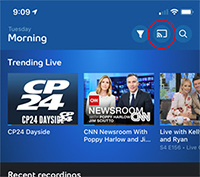
Touch the cast icon
in the top right of any screen.
-
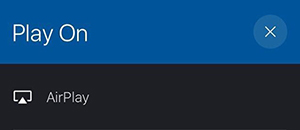
Select the AirPlay-enabled device you want to use.
- Start playing your content on your mobile device.
How to navigate the Fibe TV app during a casting session:
-
While your AirPlay content is on your TV, touch the
arrow
icon
on the top left corner. AirPlay is reduced to a grey floating bar at the bottom of your screen. You can hold and move the bar around.
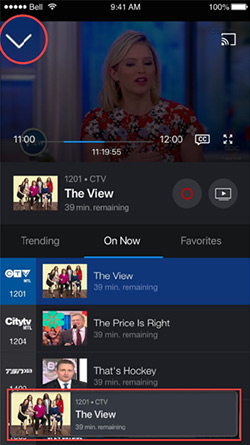
- You can navigate anywhere within the app, or even on your mobile device, while the content is playing on your TV.
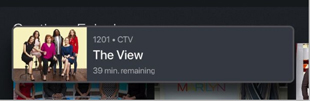
- Touch the floating grey bar to bring back the AirPlay session.
How to stop a casting session on the Fibe TV app:
-
If AirPlay is not already open, touch the floating grey bar to open the show you are watching.
- Touch the cast icon in the top right corner of your screen.
-
Select the Apple mobile device you wish to play the show on.
Using Chromecast
To use Chromecast™, both the mobile device and Chromecast™ must be connected to your Bell Wi-Fi.
How to start a casting session on the Fibe TV app:
- Start playing any on demand, live or recorded program on your mobile device.
- Tap anywhere on the casting screen to have the Chromecast TM icon appear.
- Select the Chromecast TM icon in the top right corner of the screen.
-
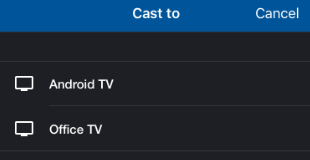
Select which Chromecast
TM
device you want to cast to.
How to navigate the Fibe TV app during a casting session:
-
When casting a program, touch the arrow icon
on the top left corner to minimize the casting screen.
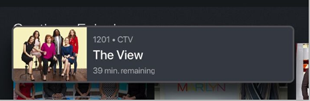
The casting screen will shrink down to a grey floating bar at the bottom of your screen. You can move the bar throughout the screen.
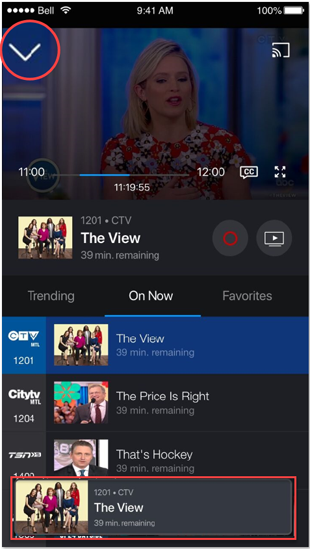
- Navigate anywhere within the app or even throughout your mobile device or tablet while still enjoying your cast program.
- Touch on the floating grey bar to bring back the casting screen.
How to stop a casting session on the Fibe TV app:
- If the casting screen is not already open, touch the floating grey bar to open the show you’re casting.
-
Touch the player to display the casting icon
.
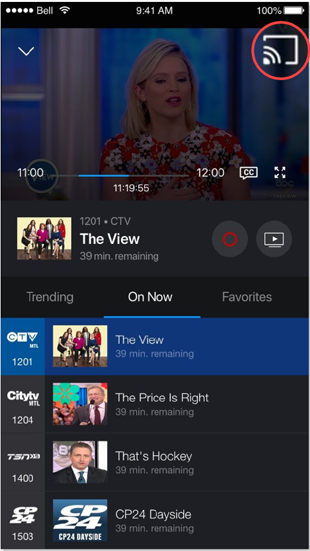
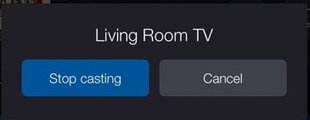
- Touch the Stop casting button at the bottom of the page.
How to disable parental controls when casting
-
Touch the
Settings
icon
on the top right.
- Touch Parental Controls .
-
Touch
Modify
 to change the parental controls.
- Enter your PIN or your MyBell username and password, as applicable. The first time, you will need your MyBell username and password but you can set a PIN once you log in.
- Touch Disregard parental controls while casting .
- Touch Save when you're finished.
- Close Parental controls by touching the X in the upper right corner.
Using Bell Streamer
Chromecast is built into the Bell Streamer. It allows you to cast content from your favourite mobile app to your big screen.
To prepare your Bell Streamer for casting you can either give it a name you will recognize or just use the default name (Bell Streamer).
To change the device name:
- With the Bell Streamer remote, navigate to the main menu and select Settings.
- Scroll down to the Device section.
- Select Settings.
-
If you see
Setup your device name
under suggestions, select it to change the name.
If you do not see the option, the default name has already been changed. To see your device name, select Device preferences > About > Device name.
Cast content to the Bell Streamer
Before you start, make sure that both your Bell Streamer and your mobile device are connected to the same Bell unlimited Internet service.
To cast content from your mobile device:
- Start playing content in your favourite app on your mobile device.
- Tap anywhere on the casting screen to have the Chromecast icon appear.
- Select the Chromecast icon in the top right corner of the screen.
- Select Bell Streamer (or the name you gave it) from the list.
- To watch a show on your TV, select the show from the Guide, or any other sections of the app.
- Touch the TV button to play the content on your TV.
- From the guide, you can also select a channel logo to tune your TV directly to that channel.
- Touch Remote to display the remote control screen.
- Use the buttons on the remote control screen to control your receiver.
- You can minimize the remote using the X to continue to browsing content.
Note
The remote screen will only appear when your smartphone or tablet is connected to your Bell Wi-Fi network.